Blur faces in photos
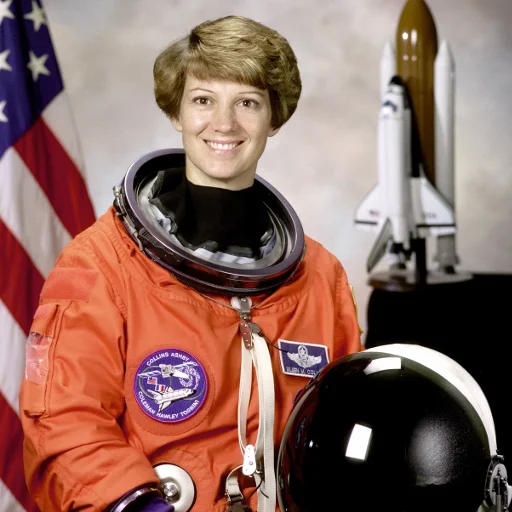
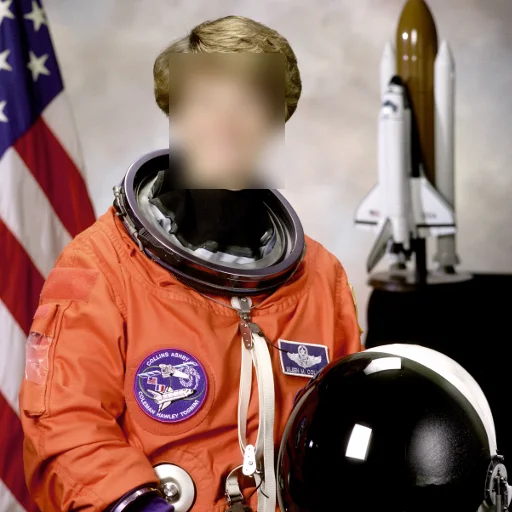
A rectangle covers the face while the rest of the photo stays visible. The face tool also offers automatic detection; review and correct any missed faces.
Open the face blur toolBlur faces, text, backgrounds, screenshots, and sensitive details directly in your browser. Upload an image, preview the blur, and download a clean result without signing up.
Select ImageUpload your images, adjust blur strength, preview in real time and download the blurred image.
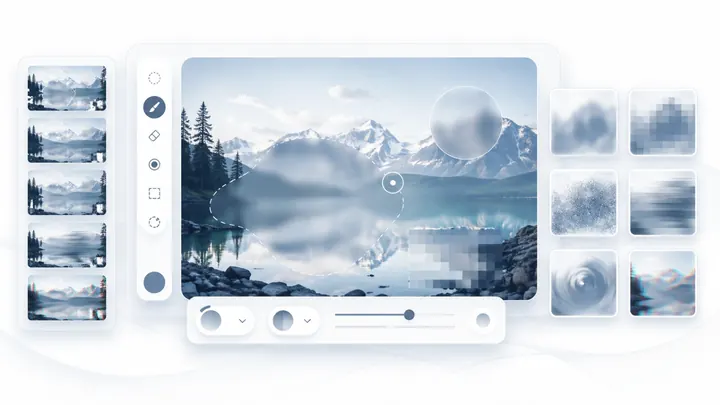
Blur your image perfectly in three simple steps.
Click the upload area or simply drag and drop your file. We support all major formats like JPG, PNG, and WEBP.
Use the intuitive slider to control the blur intensity. The live preview shows your changes instantly.
Once you are happy with the result, click the download button to save your new, perfectly blurred image for free.
Meet BlurImageOnline
Watch our introduction to editing images online with BlurImageOnline.
Compare manual selections processed with the editor’s blur routines. These examples show visual effects, not guaranteed removal of sensitive information.
A rectangle covers the face while the rest of the photo stays visible. The face tool also offers automatic detection; review and correct any missed faces.
Open the face blur tool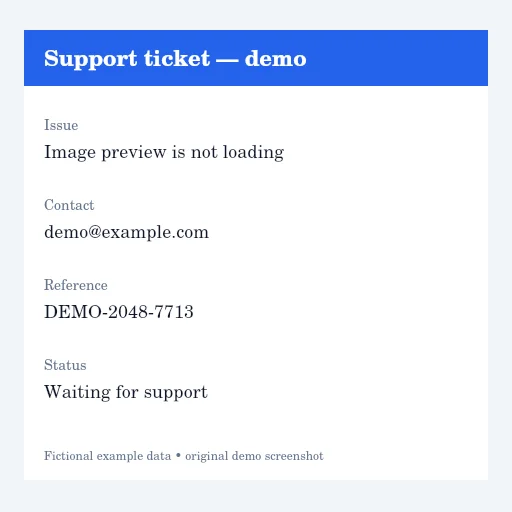
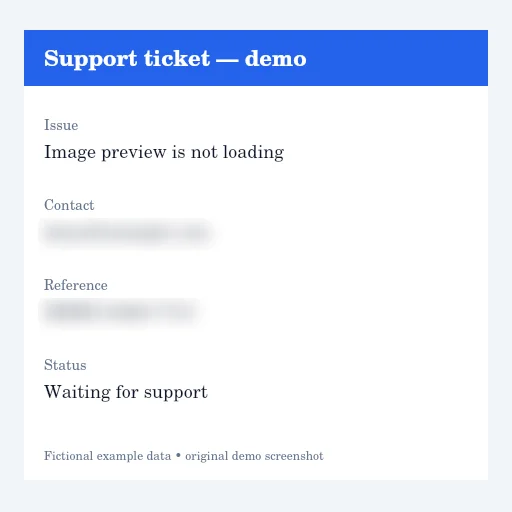
Blur the contact and reference fields while keeping the support issue readable. Remove secrets or use opaque redaction in a suitable editor when confidentiality is essential.
Open the screenshot blur tool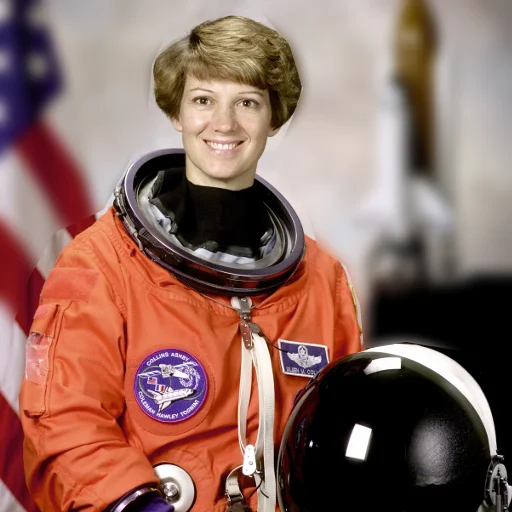
Manual lasso selections soften areas behind the subject. Keep hair, clothing, and other subject edges outside the selection; this is not an automatic portrait cutout.
Open the background blur toolPortrait: NASA / Eileen Collins, public domain, via scikit-image. No endorsement implied. Screenshot: an original demo with fictional information. Background areas were selected manually, not automatically separated.
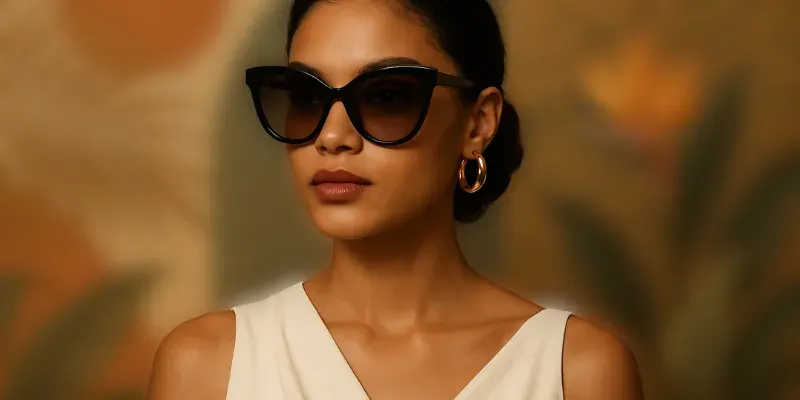
Transform an ordinary photo into a sophisticated, abstract background. Choose from multiple blur effects, including Gaussian blur, pixel blur, motion blur, and soft background blur, while preserving the original color and light.
Blur is more than a filter; it's a powerful tool for artistic expression. Add a soft haze to a landscape to create a dreamy, ethereal quality, or give a portrait a gentle glow to evoke warmth and nostalgia. Use blur to explore and define your unique visual style.
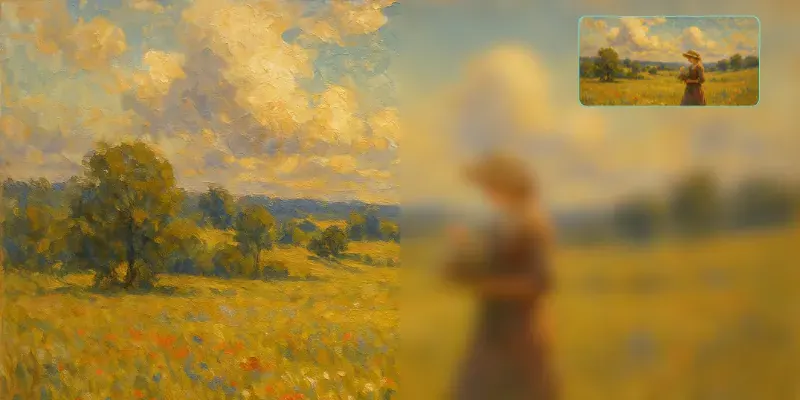
Launching a new product? Announcing a big surprise? Use a blurred image to instantly capture attention and build anticipation. It’s a classic marketing technique that creates a sense of mystery and gets your audience excited for what's coming next.
Use Paint Blur to select names, labels, or screenshot fields while leaving useful context readable. Review the whole exported image. Blur and pixelation are visual effects; remove secrets or use opaque redaction in a suitable editor when confidentiality matters.
Common uses
Use Blur Image Online for everyday privacy edits before sharing photos, screenshots, documents, or website visuals.
Hide people in group shots, event photos, or public images before posting them online.
Cover names, emails, account numbers, order IDs, addresses, and other sensitive text.
Create a cleaner visual focus for profile photos, product shots, and social media images.
Mask license plates, receipts, forms, school documents, and client information quickly.
Privacy blur tools
Open a focused tool to blur faces, text, license plates, screenshots, or private details before sharing an image.
Hide faces in portraits, group photos, and social posts before publishing.
Cover names, emails, addresses, order IDs, and private screenshot text.
Soften busy backgrounds, private rooms, screens, signs, and distractions.
Hide visible plate numbers in car listings, street photos, and travel images.
Protect private details in documents, screenshots, photos, and web images.
Hide names, tabs, chats, dashboards, order IDs, and private screenshot text.
Use a brush to hide one face, label, screen, object, or private detail.
Make privacy edits obvious for faces, plates, screenshots, and documents.
Run a quick privacy check before sharing photos, screenshots, or documents.
Clean up faces, screens, locations, labels, and distractions before posting.
Choose the blur style that fits your image, from privacy masking to soft visual backgrounds.
Blur Image Online supports multiple blur effects for everyday editing tasks. Use Gaussian blur for natural background blur, pixel blur for hiding readable details, motion blur for a sense of movement, or soft blur for clean design backdrops.
Creates a smooth, natural blur that works well for portraits, product photos, and background blur.
Turns details into blocky pixels, useful when you need to obscure faces, numbers, text, or sensitive screenshot areas.
Adds directional blur that can make images feel more dynamic for posters, banners, and teaser graphics.
Keeps colors and light while reducing distractions, ideal for website headers, presentations, and social posts.
Most blur and pixelation edits run directly in your browser, so your images stay on your device during normal editing.
Privacy and control
Preview and adjust each edit before exporting. Blur changes visible pixels, but it does not remove every metadata field or reliably protect passwords and other secrets.
Check the edited image before saving so you can confirm the sensitive area is actually hidden.
Use batch blur for full-image effects or paint blur when only one face, label, or text block needs protection.
Start editing without registration, subscriptions, or a long onboarding flow.
Download the finished image and use it in posts, presentations, support tickets, or documentation.
Related image tools
Reduce image file size after editing so the final file is easier to upload and share.
Improve clarity in soft or slightly blurry photos with an AI-assisted enhancement workflow.
Invert colors for a creative variation, then blur or prepare the final image before sharing.
Extract a clear still frame from a video and then blur or edit it as a regular image.
Blur faces, text, license plates, and private details in short videos.
Image privacy guides
Read practical guides for hiding faces, screenshot text, metadata, and private details before posting images online.
Protect identities in group pictures, events, listings, and social posts without losing context.
Read guide →ScreenshotsLearn what text to hide before sharing screenshots, documents, and private images.
Read guide →Getting startedFollow the steps to blur a whole photo, one area, text, or faces, and check the saved result.
Read guide →SelectionCompare rectangle selection and freehand blur for hiding precise image details.
Read guide →Unlock the full potential of your photos with our meticulously crafted features, designed to make image blurring and photo editing simpler, faster, and incredibly precise.
Upload your image effortlessly and apply the blur effect within seconds. Our intuitive interface lets you control blur strength with a simple slider, making the process smooth and user-friendly for everyone.
Experience instant feedback. Our dynamic live preview lets you fine-tune the blur intensity and watch changes unfold in real time. No more guesswork – precisely tailor the effect and confidently achieve your desired visual before downloading your perfectly blurred image.
The blur and pixelation editor processes your image in your browser. Other tools, account features, analytics and payments may use network services; this is not a promise that the whole website works offline or that blur guarantees privacy.
Basic single-image blur is free and requires no account. Plus adds batch blur, batch compression and ad-free use. See Pricing for the features and limits of each plan.
Blur Image Online is a browser image editor for softening a whole photo or selected areas. Use Gaussian blur for smooth backgrounds or pixel blur for blocky coverage. Basic single-image editing needs no account; inspect the downloaded copy before sharing.
Basic single-image blur is free and requires no account. Plus adds batch blur, batch compression and ad-free use. See Pricing for the features and limits of each plan.
The blur and pixelation editor processes your image in your browser. Other tools, account features, analytics and payments may use network services; this is not a promise that the whole website works offline or that blur guarantees privacy.
For a whole-image effect, use Batch Blur and adjust the strength. To blur part of an image, switch to Paint Blur, upload the image, and use the brush, rectangle, or freehand lasso. Review the preview, undo mistakes if needed, and download the edited PNG.
Our tool supports the most common image formats, including JPEG, PNG, and WEBP. You can upload and edit these formats without any issues, providing you with flexibility in processing your photos.
File size and processing speed depend on your device and browser. Batch blur and batch compression are available with Plus; check Pricing and the active tool for current limits.
The blur image tool supports several blur styles, including Gaussian blur, pixel blur, motion blur, radial blur, noise blur, and color blur. You can choose the effect that best matches your privacy, design, or creative editing goal.
Open Paint Blur and select the area with the brush, rectangle, or freehand lasso. Use a rectangle for screenshot text, a small brush near subject edges, and adjust the strength. Check the exported image at full size before sharing.
Gaussian blur blends nearby pixels for a smooth effect; pixel blur reduces detail into visible blocks; motion blur adds directional streaks. Use Gaussian for softer backgrounds or pixel blur for an obvious edited area. Blur and pixelation do not guarantee that information cannot be inferred.
Yes. Choose pixel blur in Paint Blur and cover each private text area with padding. Review tabs, sidebars, and notification previews too. For passwords, API keys, recovery codes, or highly sensitive records, remove the information or use opaque redaction in another editor instead.
Paint Blur offers a brush for strokes, rectangle selection for text rows and panels, and a freehand lasso for closed irregular shapes. Selections are manual; this editor does not automatically detect sensitive text.
Absolutely. If you blur something by mistake, you can: 1. Click the undo button to step back through your previous actions; 2. Use the redo button if you undo too many steps; 3. Clear all blur strokes entirely to start fresh. All changes update in real-time preview so you can get exactly the result you want.
Yes, full zoom and pan support is included. You can zoom in and out freely using the slider or +/- buttons, all the way up to the original image resolution for precise edge work. When zoomed in, drag with your mouse or finger to pan around and view any part of the image. Click the 'Fit' button to quickly scale the image to fit your screen size again.
Paint Blur exports a PNG at the current canvas dimensions. It preserves smaller image dimensions and reduces the long edge of larger images to at most 1920 pixels. This does not restore missing detail or guarantee original image quality; reopen the downloaded file to inspect it.
Yes. Open this site in a current browser, select your image, apply the effect, and download the PNG. The blur editor processes image pixels in your browser; the website still uses network services for features such as accounts, analytics, and payments.
Use Paint Blur to select a face manually, or open Blur Face Online for automatic face detection with manual corrections. Review small faces and reflections, and remember that clothing, badges, or location can still identify someone.