הגן על זהויות לפני פרסום
השתמש בעמוד הזה לפני שיתוף תמונות אירועים, בית ספר, צוות, לקוחות או רשתות חברתיות. שמור על ההקשר השימושי של התמונה תוך הסתרת פנים ואנשים, שימושי לרשתות חברתיות, תיעוד, תמיכה ותוכן ציבורי שבו לא רוצים לחשוף זהויות אישיות.
עריכת תמונות פרטית בדפדפן
ערכו תמונות לפני פרסום והסתירו פנים, טקסט, מקומות, לוחיות, מסכים ופרטים פרטיים.
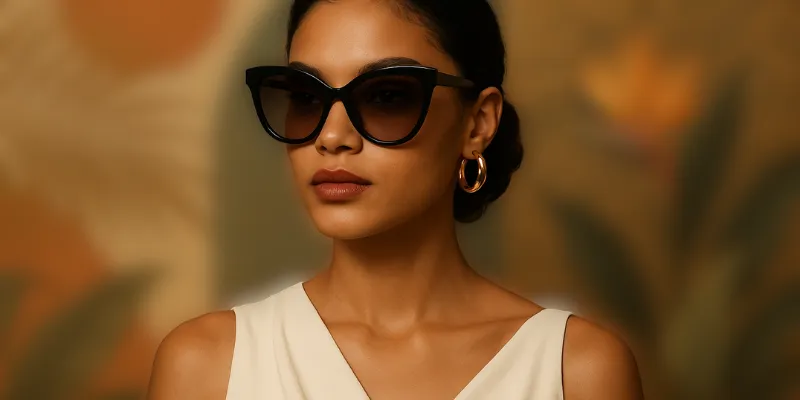
העלה תמונה, התאם את עוצמת הטשטוש, הצג תצוגה מקדימה בזמן אמת וורד את התמונה המטושטשת.
השתמש בעמוד הזה לפני שיתוף תמונות אירועים, בית ספר, צוות, לקוחות או רשתות חברתיות. שמור על ההקשר השימושי של התמונה תוך הסתרת פנים ואנשים, שימושי לרשתות חברתיות, תיעוד, תמיכה ותוכן ציבורי שבו לא רוצים לחשוף זהויות אישיות.
בחירה ידנית עוזרת כאשר כלים אוטומטיים לא מזהים היטב פנים ואנשים. אפשר להשאיר שוליים רחבים מעט ולבדוק תצוגה מקדימה לפני ההורדה. בדוק קצוות, השתקפויות, רקע ורמזים שעלולים לחשוף זהויות אישיות.
הגבר את הטשטוש עד שהפרט אינו קריא או מזוהה. הורד את הגרסה הערוכה ושתף רק אותה.
איך זה עובד
העלה תמונה, סמן אזור פרטי, בדוק תצוגה מקדימה והורד עותק בטוח יותר.
העלה תמונה שמכילה פנים ואנשים.
בחר את האזור שברצונך להסתיר.
הגבר את הטשטוש עד שהפרט אינו קריא או מזוהה.
הורד את הגרסה הערוכה ושתף רק אותה.
כן. אפשר לבחור כמה אזורים לפני הורדת התוצאה הסופית.
אם צריך לשמור על ההקשר של התמונה, טשטוש בדרך כלל מתאים יותר.
בדוק קצוות, השתקפויות, רקע ורמזים שעלולים לחשוף זהויות אישיות.