के लिए सर्वोत्तम कार्य करता है
- हल्का फोकस या थोड़ी धुंधली तस्वीरें
- हैंडहेल्ड शॉट्स से छोटा मोशन ब्लर
- स्क्रीनशॉट या वेब छवियां जिनमें तेज़ किनारों की आवश्यकता होती है
एआई छवि स्पष्टता उपकरण
धुंधली फोटो, नरम स्क्रीनशॉट या कंप्रेस हुई वेब इमेज अपलोड करें और ब्राउज़र में ही स्पष्टता बढ़ाएं। यह AI टूल वास्तविक परिणामों के लिए है: साफ किनारे, पढ़ने योग्य विवरण और ईमानदार सीमाएं।
या अपने डिवाइस से चुनने के लिए क्लिक करें
यथार्थवादी परिणाम
हल्के धुंधलेपन, हल्के फोकस और कम स्पष्टता वाली छवियों को बेहतर बनाने के लिए अनब्लर इमेज ऑनलाइन सबसे अच्छा है। यह विवरण को देखना आसान बना सकता है, लेकिन यह उस जानकारी को दोबारा नहीं बना सकता जो मूल फ़ाइल में कभी कैप्चर नहीं की गई थी।
सर्वोत्तम उपयोग के मामले
जब इमेज लगभग ठीक हो, लेकिन पब्लिश, शेयर या एडिट करने से पहले साफ किनारे या पढ़ने योग्य टेक्स्ट चाहिए, तब इसका उपयोग करें।
बाज़ार की तस्वीरों को प्रकाशित करने या ग्राहक को भेजने से पहले उनमें थोड़ा सुधार करें।
धुंधले स्क्रीनशॉट, नोट्स, यूआई कैप्चर या संदर्भ छवियों को तेज करें ताकि टेक्स्ट किनारों को पढ़ना आसान हो।
अपलोड, मैसेजिंग या संपीड़न के बाद नरम दिखने वाली कैज़ुअल फ़ोटो साफ़ करें।
वर्कफ़्लो में उपयोग करने से पहले समर्थन स्क्रीनशॉट, वेबसाइट कैप्चर और विज़ुअल संदर्भ को स्पष्ट करें।
एक केंद्रित उपकरण की तरह निर्मित
A good unblur image tool should not feel like a noisy demo. It should explain what it can improve, keep the result believable, and make it easy to decide whether the enhanced image is actually useful.
रियल-ESRGAN मॉडल पहले क्लिक के बाद आपके ब्राउज़र में चलता है। यह केवल जरूरत पड़ने पर ही लोड होता है और इसे कैश किया जा सकता है, इसलिए मुख्य साइट हल्की रहती है।
The enhancement focuses on edges, texture, and readable detail. It is best for a natural clarity boost rather than an overprocessed, crunchy look.
गंभीर गति धुंधलापन, गायब चेहरे का विवरण, और छोटी संपीड़ित फ़ाइलों को पुनर्प्राप्त करना अभी भी असंभव हो सकता है। पेज आपको समय बर्बाद करने से पहले बताता है।
शार्प करने के बाद, आप निजी विवरणों को धुंधला कर सकते हैं, अंतिम छवि को संपीड़ित कर सकते हैं, या इसे क्लीनर स्क्रीनशॉट, लिस्टिंग फोटो, सपोर्ट अटैचमेंट या वेब ग्राफ़िक के रूप में उपयोग कर सकते हैं।
बेहतर परिणाम
AI sharpening works best when the original image still contains useful detail. These small choices help the unblur image tool produce a clearer result without making the photo look harsh or fake.
जब संभव हो तो मूल फ़ोटो या स्क्रीनशॉट का उपयोग करें। किसी चैट ऐप से डाउनलोड की गई या किसी अन्य पूर्वावलोकन से कॉपी की गई फ़ाइल पहले से ही वह बारीक विवरण खो चुकी है जो एक छवि बढ़ाने वाले के लिए आवश्यक है।
यह टूल सॉफ्ट फोकस, लाइट कैमरा शेक, कंप्रेस्ड वेब इमेज और धुंधले स्क्रीनशॉट के लिए सबसे उपयोगी है। गंभीर गति धुंधलापन या गायब पाठ में केवल थोड़ा सुधार हो सकता है।
प्रसंस्करण के बाद, चेहरे, उत्पाद लेबल, यूआई टेक्स्ट और किनारों को सामान्य देखने के आकार पर जांचें। सबसे अच्छा परिणाम स्पष्ट और अभी भी स्वाभाविक है, अधिक तीखा नहीं।
यदि उन्नत छवि सार्वजनिक रूप से साझा की जाएगी, तो पहले निजी जानकारी को धुंधला कर दें। यदि इसे किसी वेबसाइट पर अपलोड किया जाएगा, तो पृष्ठ को तेज़ बनाए रखने के लिए छवि को शार्प करने के बाद उसे संपीड़ित करें।
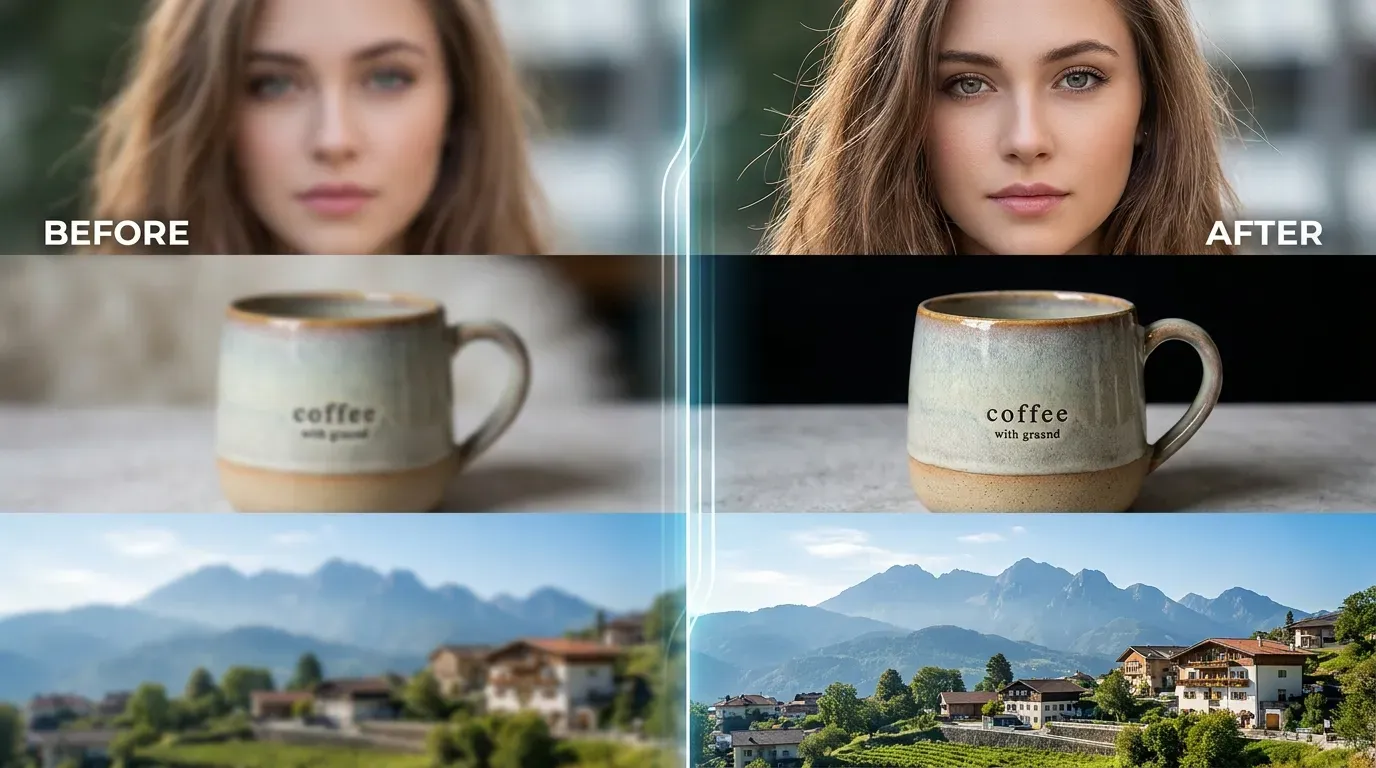
यह टूल हल्की धुंधली तस्वीरों, स्क्रीनशॉट और छोटी वेब इमेज के लिए उपयुक्त है। डाउनलोड से पहले प्रीव्यू देखें।
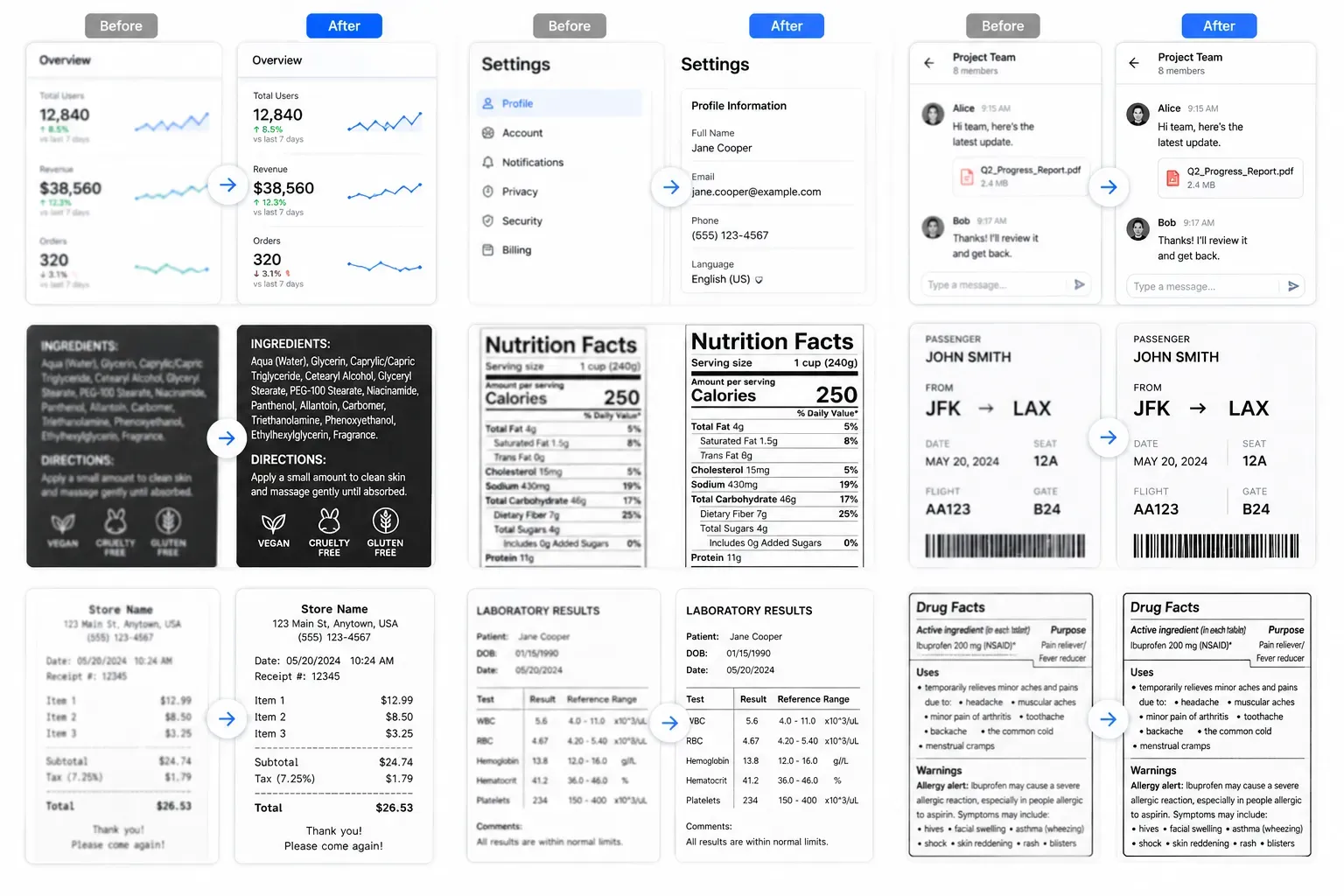
यह टूल हल्की धुंधली तस्वीरों, स्क्रीनशॉट और छोटी वेब इमेज के लिए उपयुक्त है। डाउनलोड से पहले प्रीव्यू देखें।
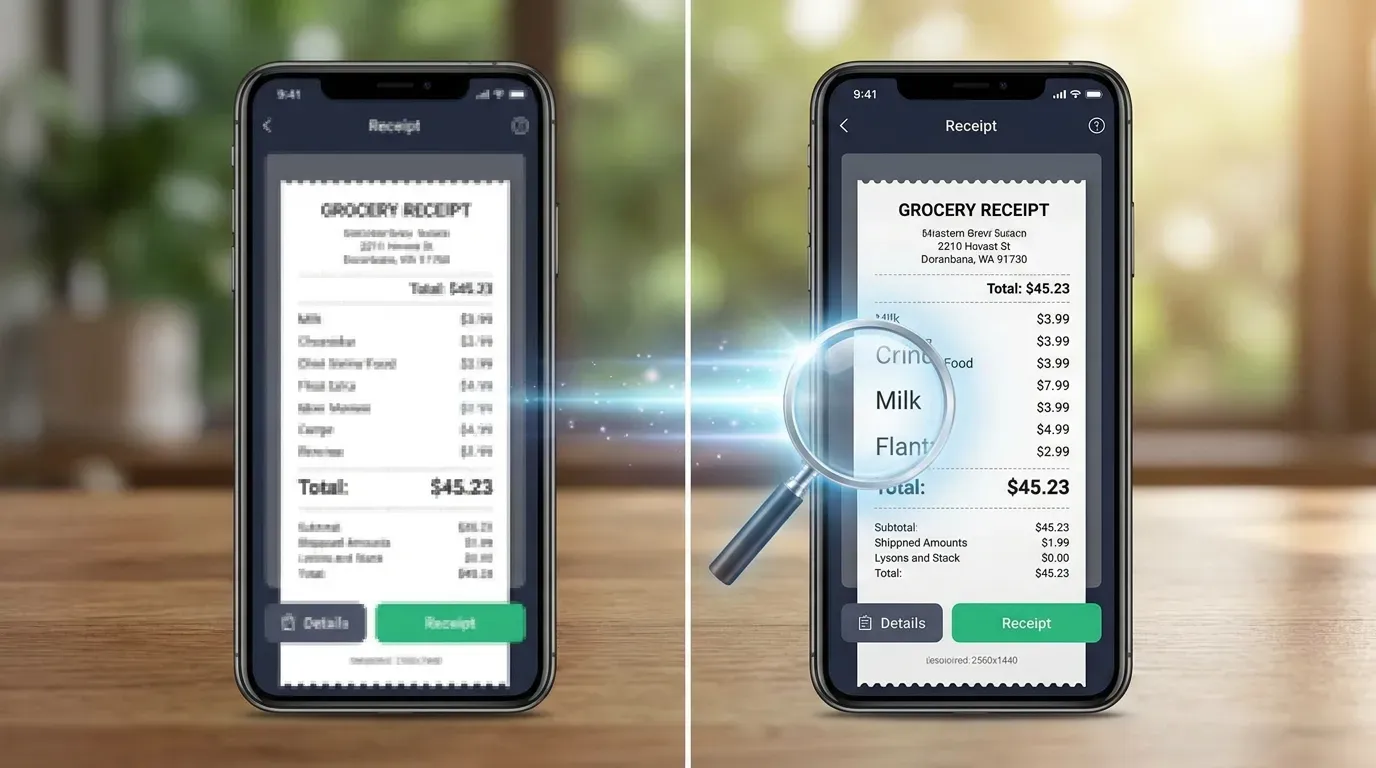
यह टूल हल्की धुंधली तस्वीरों, स्क्रीनशॉट और छोटी वेब इमेज के लिए उपयुक्त है। डाउनलोड से पहले प्रीव्यू देखें।
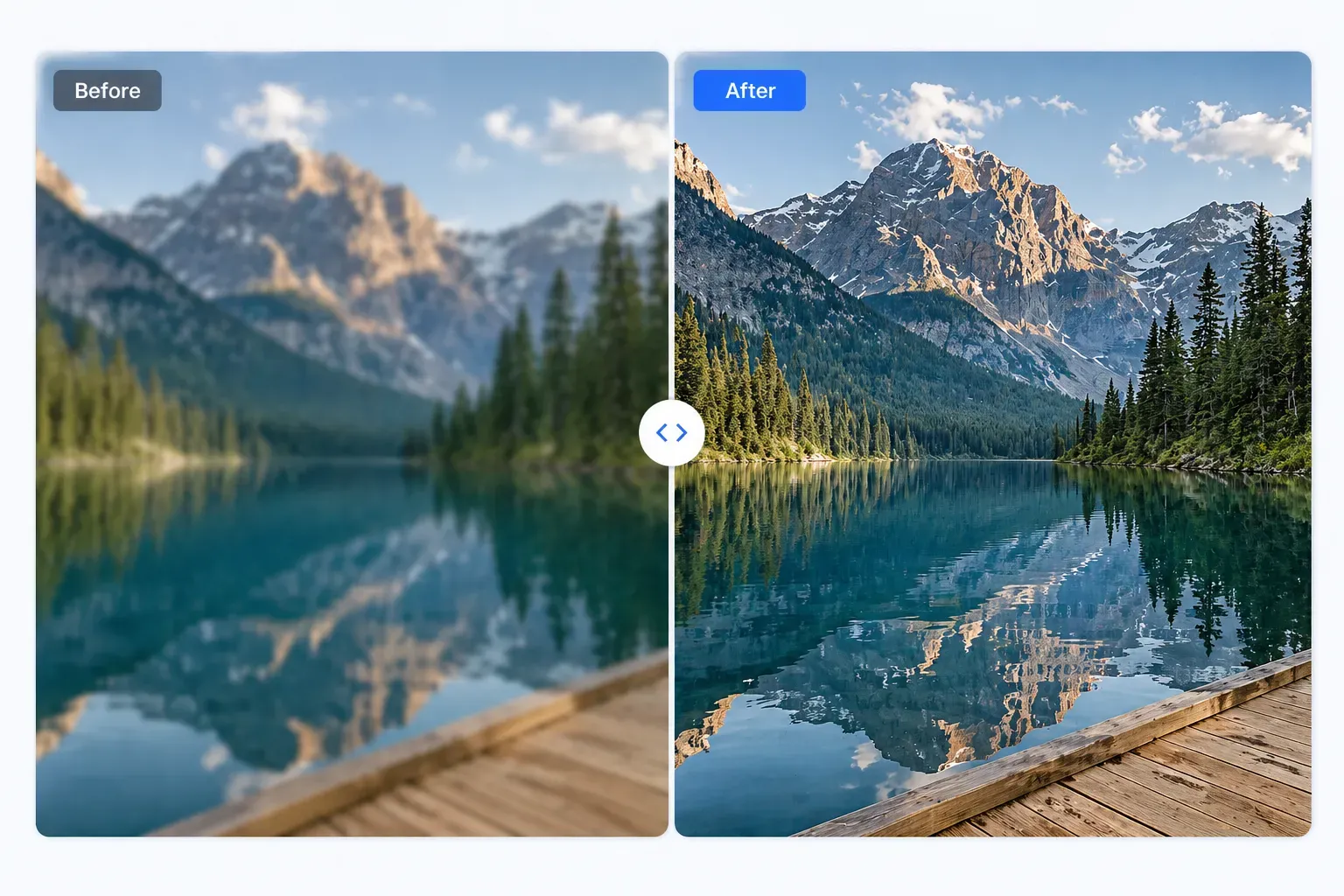
यह टूल हल्की धुंधली तस्वीरों, स्क्रीनशॉट और छोटी वेब इमेज के लिए उपयुक्त है। डाउनलोड से पहले प्रीव्यू देखें।
इमेज सुधारने के तीन आसान चरण।
सामान्य इमेज फ़ॉर्मेट चुनें।
इमेज सुरक्षित रूप से हमारी प्रोसेसिंग सेवा को भेजी जाती है।
परिणाम की तुलना करें और डाउनलोड करें।
यह टूल हल्की धुंधली तस्वीरों, स्क्रीनशॉट और छोटी वेब इमेज के लिए उपयुक्त है। डाउनलोड से पहले प्रीव्यू देखें।
जहाँ संभव हो स्पष्टता बढ़ाता है।
सीधे ब्राउज़र में काम करता है।
पहले और बाद को जल्दी दिखाता है।
कोई पंजीकरण, सदस्यता या watermark नहीं।
संपादन जारी रखें
स्पष्टता में सुधार के बाद निजी विवरण छुपाएं, विशेष रूप से स्क्रीनशॉट या सार्वजनिक-सामना वाली तस्वीरों में।
अंतिम छवि को संपीड़ित करें ताकि यह वेबसाइटों पर तेजी से लोड हो और अधिक आसानी से अपलोड हो।
हल्की धुंधली इमेज को बेहतर करने के बाद अलग विज़ुअल ट्रीटमेंट आज़माने के लिए उसके रंग इनवर्ट करें।
जब आप अधिक स्टाइलिश फिनिश चाहते हैं तो एक सूक्ष्म रेट्रो ग्रेन बनावट जोड़ें।
Realistic feedback from people improving slightly blurry images.
"I used the AI unblur tool on a few slightly soft archive photos. It worked best on mild blur, and the before-and-after preview made the result easy to judge."
Tom Richards