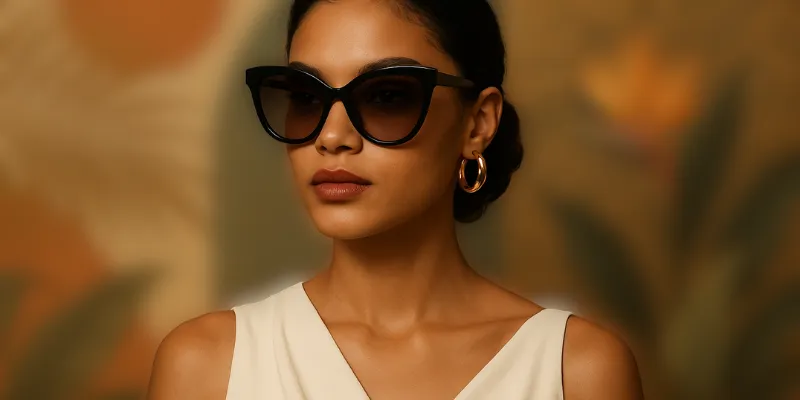
Edição privada de imagens no navegador

Blur Photo Before Sharing

A photo can feel ready to post until you notice one detail that should not be public. Maybe a child is visible in the background, a street sign shows the location, a work screen is open, or a package label has an address. This page helps you clean up those details before the image leaves your device.

Ferramenta de desfoque de imagem

Faça o upload de uma imagem, ajuste a intensidade do desfoque, visualize em tempo real e baixe a imagem desfocada.

Useful for social posts and listings

Before uploading to Instagram, Facebook, LinkedIn, a marketplace, a forum, or a support ticket, take a moment to hide details that are not part of the story.

Keep the photo natural where possible

Use a gentle blur for distracting backgrounds and a stronger blur for private text, faces, plates, and documents. The right strength depends on the risk.

Download a separate safe copy

Keep the original for yourself and share only the edited version. This avoids accidentally reposting the unedited file later.

Como funciona

Como blur photo before sharing

Envie a imagem, marque a área privada, confira a prévia e baixe uma cópia mais segura.

  1. 1

    Upload the photo you want to post or send.

  2. 2

    Brush over private or distracting areas.

  3. 3

    Check the preview at full size.

  4. 4

    Download the safe copy and use that version online.

Perguntas frequentes

Should I blur photos before posting online?

It is a good habit when photos include other people, addresses, documents, screens, license plates, badges, or location clues.

Can I blur only the background before sharing?

Yes. Use the paint blur mode to soften background areas while keeping the main subject visible.

Do I need an account to blur a photo?

No. You can use the blur editor directly in your browser without signing up.

Pronto para editar sua imagem?

Abra o editor, oculte detalhes privados e baixe a imagem final.

Blur a photo now