ทำงานได้ดีที่สุดสำหรับ
- ภาพนุ่มนวลหรือภาพเบลอเล็กน้อย
- ภาพเบลอจากการเคลื่อนไหวเล็กน้อยจากการถือกล้องด้วยมือ
- ภาพหน้าจอหรือรูปภาพบนเว็บที่ต้องการขอบที่คมชัดยิ่งขึ้น
เครื่องมือความคมชัดของภาพ AI
อัปโหลดรูปที่เบลอ สกรีนช็อตที่ไม่คม หรือภาพเว็บที่ถูกบีบอัด แล้วปรับความชัดในเบราว์เซอร์ เครื่องมือ AI นี้เน้นผลลัพธ์ที่ดูจริง ขอบคมขึ้น รายละเอียดอ่านง่ายขึ้น และไม่สัญญาเกินจริง
หรือคลิกเพื่อเลือกจากอุปกรณ์ของคุณ
ผลลัพธ์ที่สมจริง
Unblur Image Online เหมาะที่สุดสำหรับการปรับปรุงภาพเบลอเล็กน้อย ซอฟต์โฟกัส และภาพที่มีความคมชัดต่ำ สามารถทำให้ดูรายละเอียดได้ง่ายขึ้น แต่ไม่สามารถสร้างข้อมูลที่ไม่เคยบันทึกไว้ในไฟล์ต้นฉบับขึ้นมาใหม่ได้
กรณีการใช้งานที่ดีที่สุด
ใช้เมื่อภาพเกือบดีแล้ว แต่ต้องการขอบที่สะอาดขึ้นหรือข้อความที่อ่านง่ายขึ้นก่อนเผยแพร่ แชร์ เก็บไว้ หรือแก้ไขต่อ
ปรับปรุงภาพถ่ายตลาดเล็กน้อยก่อนที่จะเผยแพร่หรือส่งให้กับลูกค้า
ปรับภาพหน้าจอที่เบลอ บันทึกย่อ การจับภาพ UI หรือรูปภาพอ้างอิงเพื่อให้ขอบข้อความอ่านง่ายขึ้น
ทำความสะอาดภาพถ่ายทั่วไปที่ดูนุ่มนวลหลังจากการอัปโหลด ข้อความ หรือการบีบอัด
ทำให้ภาพหน้าจอการสนับสนุน การจับภาพเว็บไซต์ และภาพอ้างอิงชัดเจนขึ้นก่อนที่จะนำไปใช้ในขั้นตอนการทำงาน
สร้างขึ้นเหมือนเครื่องมือที่เน้น
A good unblur image tool should not feel like a noisy demo. It should explain what it can improve, keep the result believable, and make it easy to decide whether the enhanced image is actually useful.
โมเดล Real-ESRGAN ทำงานในเบราว์เซอร์ของคุณหลังจากการคลิกครั้งแรก โหลดเมื่อจำเป็นเท่านั้นและสามารถแคชได้ ดังนั้นไซต์หลักจึงมีน้ำหนักเบา
The enhancement focuses on edges, texture, and readable detail. It is best for a natural clarity boost rather than an overprocessed, crunchy look.
ภาพเบลอจากการเคลื่อนไหวที่รุนแรง รายละเอียดใบหน้าหายไป และไฟล์บีบอัดขนาดเล็กอาจยังคงไม่สามารถกู้คืนได้ เพจจะบอกคุณก่อนที่จะเสียเวลา
หลังจากการเหลา คุณสามารถเบลอรายละเอียดส่วนตัว บีบอัดภาพสุดท้าย หรือใช้เป็นภาพหน้าจอที่สะอาดตา รายการรูปภาพ เอกสารแนบ หรือกราฟิกบนเว็บได้
ผลลัพธ์ที่ดีขึ้น
AI sharpening works best when the original image still contains useful detail. These small choices help the unblur image tool produce a clearer result without making the photo look harsh or fake.
ใช้รูปภาพหรือภาพหน้าจอต้นฉบับเมื่อเป็นไปได้ ไฟล์ที่ดาวน์โหลดจากแอปแชทหรือคัดลอกจากตัวอย่างอื่นอาจสูญเสียรายละเอียดเล็กๆ น้อยๆ ที่เครื่องมือเพิ่มประสิทธิภาพรูปภาพต้องการไปแล้ว
เครื่องมือนี้มีประโยชน์มากที่สุดสำหรับซอฟต์โฟกัส กล้องสั่นไหว รูปภาพเว็บที่ถูกบีบอัด และภาพหน้าจอที่พร่ามัว ภาพเบลอจากการเคลื่อนไหวที่รุนแรงหรือข้อความหายไปอาจดีขึ้นเพียงเล็กน้อยเท่านั้น
หลังจากประมวลผลแล้ว ให้ตรวจสอบใบหน้า ฉลากผลิตภัณฑ์ ข้อความ UI และขอบด้วยขนาดการรับชมปกติ ผลลัพธ์ที่ดีที่สุดคือชัดเจนและยังคงเป็นธรรมชาติไม่แหลมเกินไป
หากรูปภาพที่ปรับปรุงแล้วจะแชร์แบบสาธารณะ ให้เบลอข้อมูลส่วนตัวก่อน หากจะอัพโหลดลงเว็บไซต์ ให้บีบอัดภาพหลังปรับความคมชัดเพื่อให้หน้าเพจรวดเร็ว
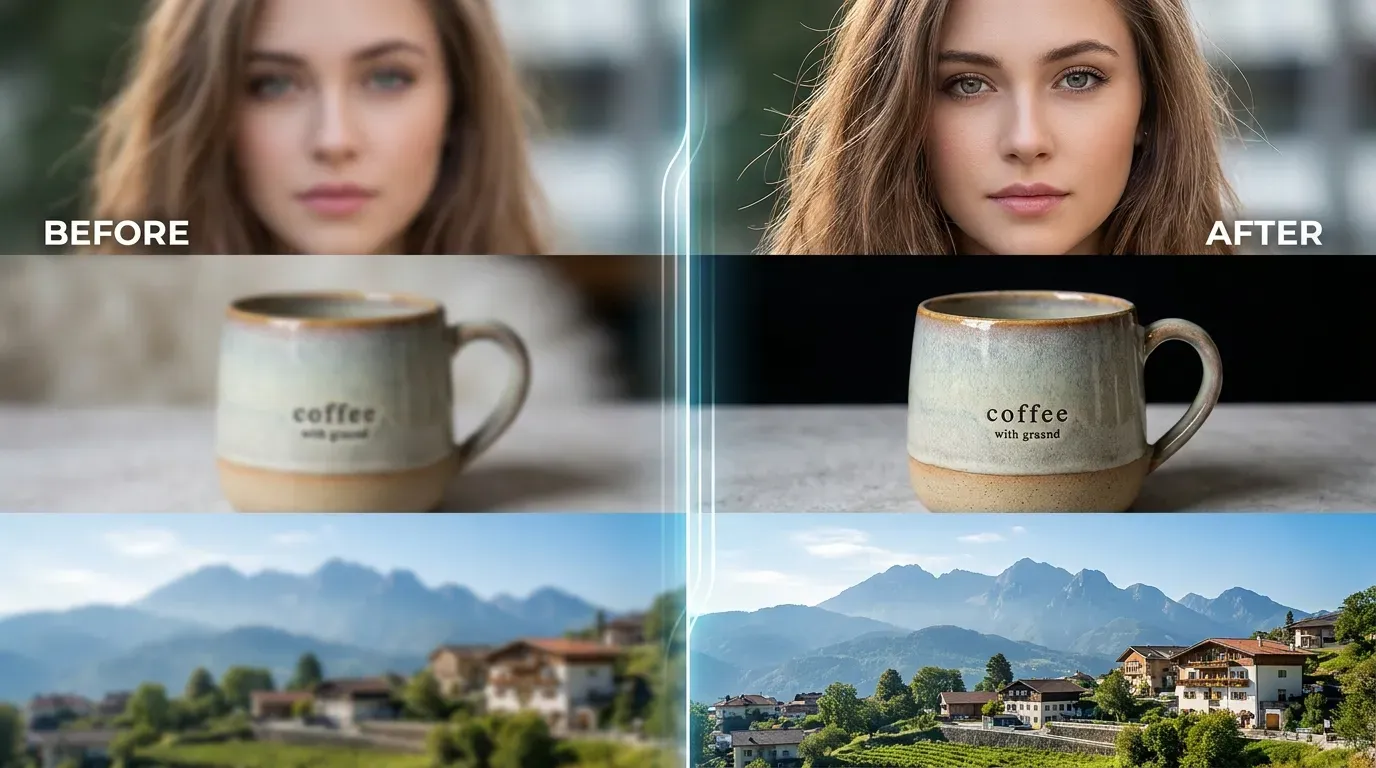
เครื่องมือนี้เหมาะกับภาพถ่าย ภาพหน้าจอ และภาพเว็บขนาดเล็กที่เบลอเล็กน้อย ควรดูตัวอย่างก่อนดาวน์โหลด
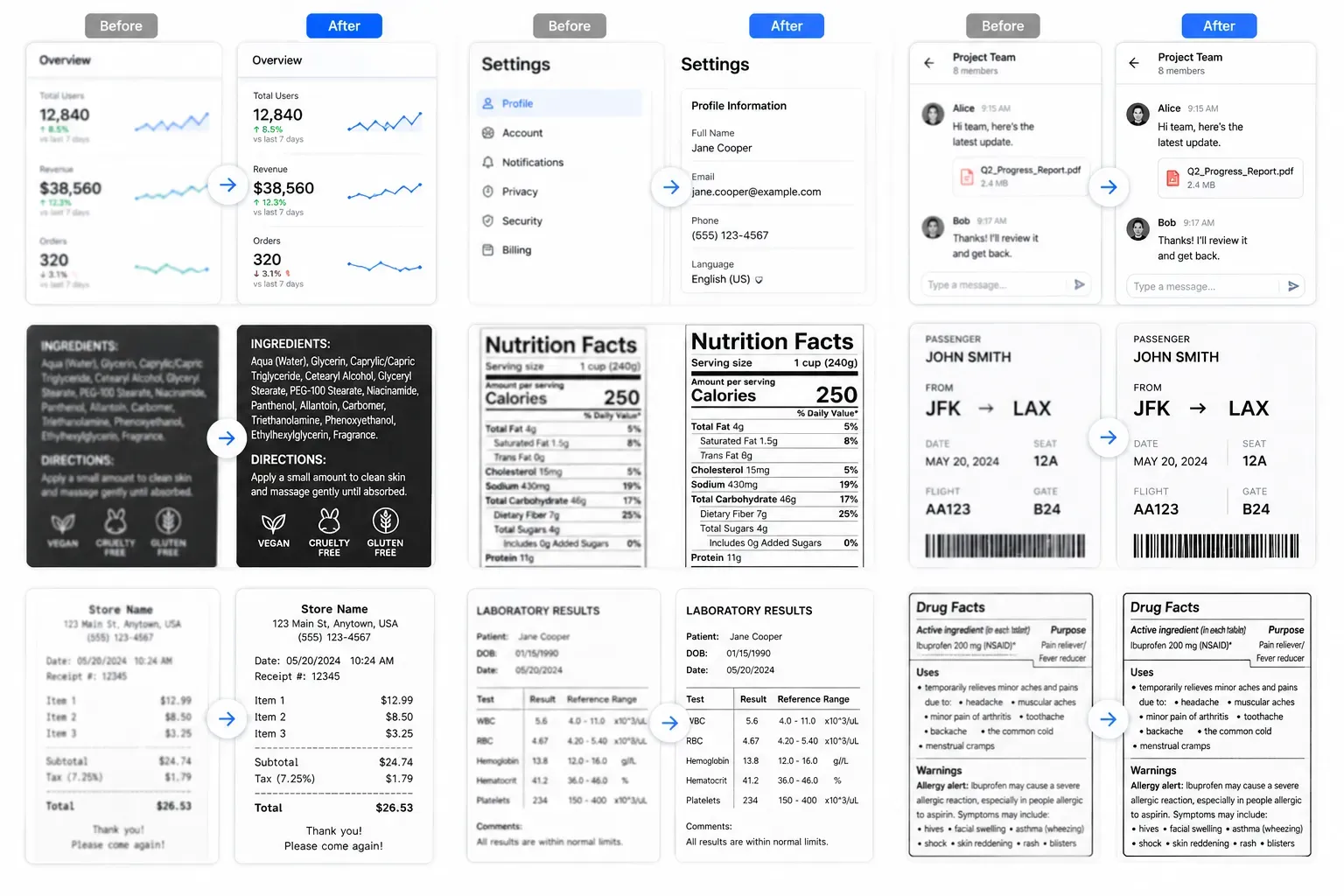
เครื่องมือนี้เหมาะกับภาพถ่าย ภาพหน้าจอ และภาพเว็บขนาดเล็กที่เบลอเล็กน้อย ควรดูตัวอย่างก่อนดาวน์โหลด
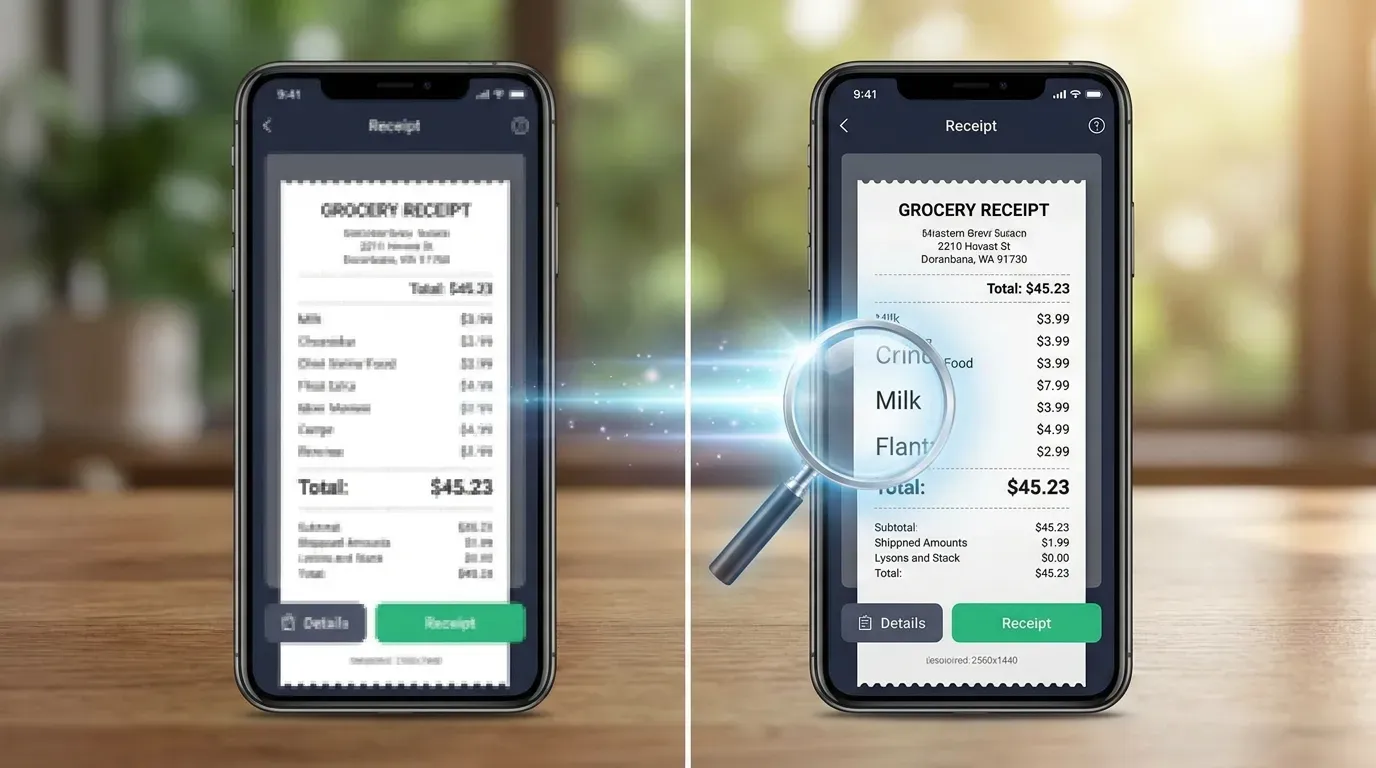
เครื่องมือนี้เหมาะกับภาพถ่าย ภาพหน้าจอ และภาพเว็บขนาดเล็กที่เบลอเล็กน้อย ควรดูตัวอย่างก่อนดาวน์โหลด
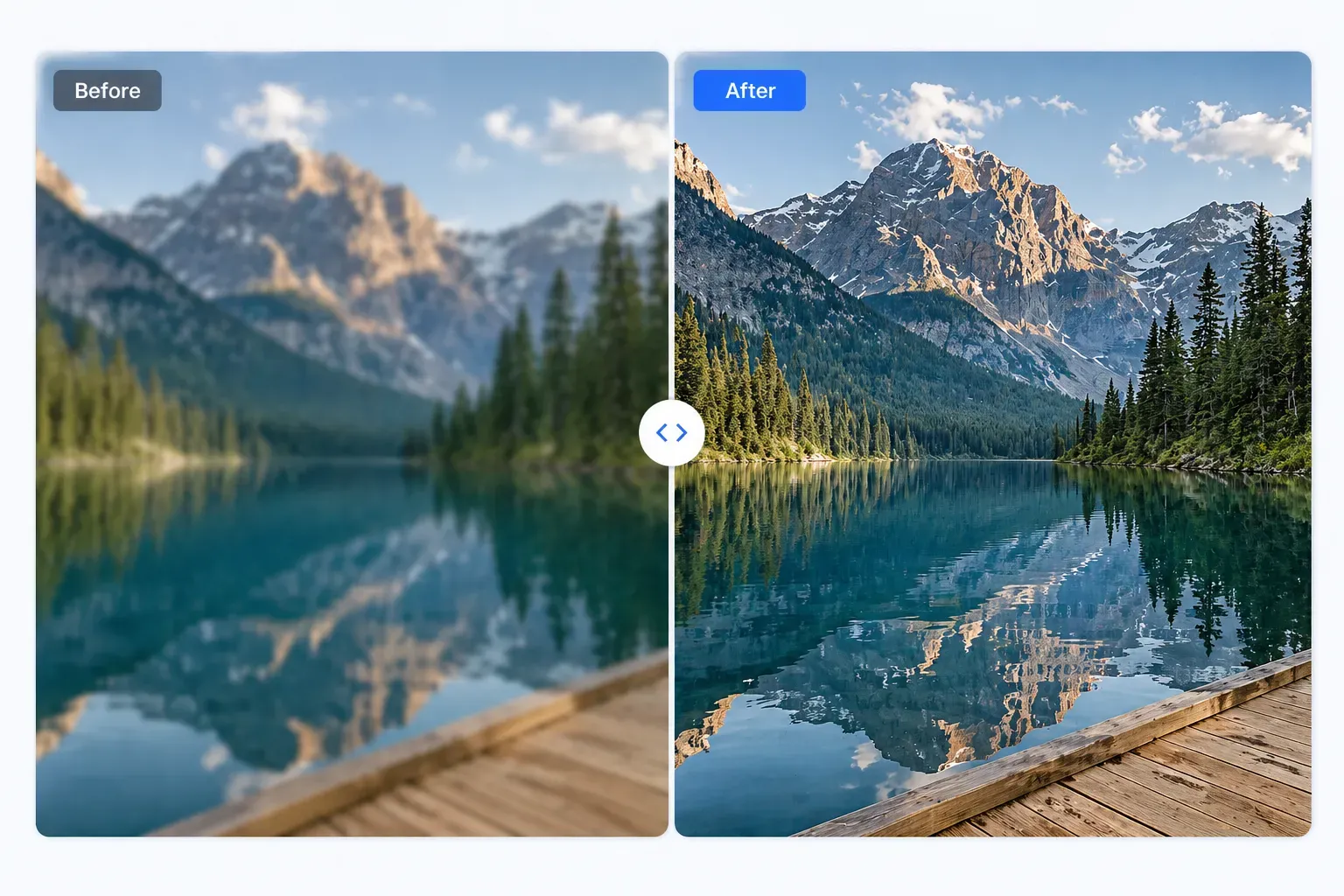
เครื่องมือนี้เหมาะกับภาพถ่าย ภาพหน้าจอ และภาพเว็บขนาดเล็กที่เบลอเล็กน้อย ควรดูตัวอย่างก่อนดาวน์โหลด
สามขั้นตอนง่าย ๆ เพื่อปรับปรุงภาพ
เลือกไฟล์ภาพรูปแบบทั่วไป
ภาพจะถูกส่งอย่างปลอดภัยไปยังบริการประมวลผลของเรา
เปรียบเทียบผลลัพธ์แล้วดาวน์โหลด
เครื่องมือนี้เหมาะกับภาพถ่าย ภาพหน้าจอ และภาพเว็บขนาดเล็กที่เบลอเล็กน้อย ควรดูตัวอย่างก่อนดาวน์โหลด
ช่วยเพิ่มความคมชัดเท่าที่ทำได้
ทำงานในเบราว์เซอร์โดยตรง
แสดงก่อนและหลังอย่างรวดเร็ว
ไม่ต้องลงทะเบียน สมัครสมาชิก หรือมีลายน้ำ
แก้ไขต่อ
ซ่อนรายละเอียดส่วนตัวหลังจากปรับปรุงความชัดเจน โดยเฉพาะในภาพหน้าจอหรือภาพถ่ายที่เปิดเผยต่อสาธารณะ
บีบอัดภาพสุดท้ายเพื่อให้โหลดบนเว็บไซต์ได้เร็วขึ้นและอัปโหลดได้ง่ายขึ้น
หลังปรับปรุงภาพที่เบลอเล็กน้อยแล้ว ให้กลับสีเพื่อทดลองการนำเสนอภาพในรูปแบบอื่น
เพิ่มพื้นผิวเกรนย้อนยุคอันละเอียดอ่อน เมื่อคุณต้องการการตกแต่งที่ดูมีสไตล์มากขึ้น
Realistic feedback from people improving slightly blurry images.
"I used the AI unblur tool on a few slightly soft archive photos. It worked best on mild blur, and the before-and-after preview made the result easy to judge."
Tom Richards