How to Extract High-Quality Frames from Video Online
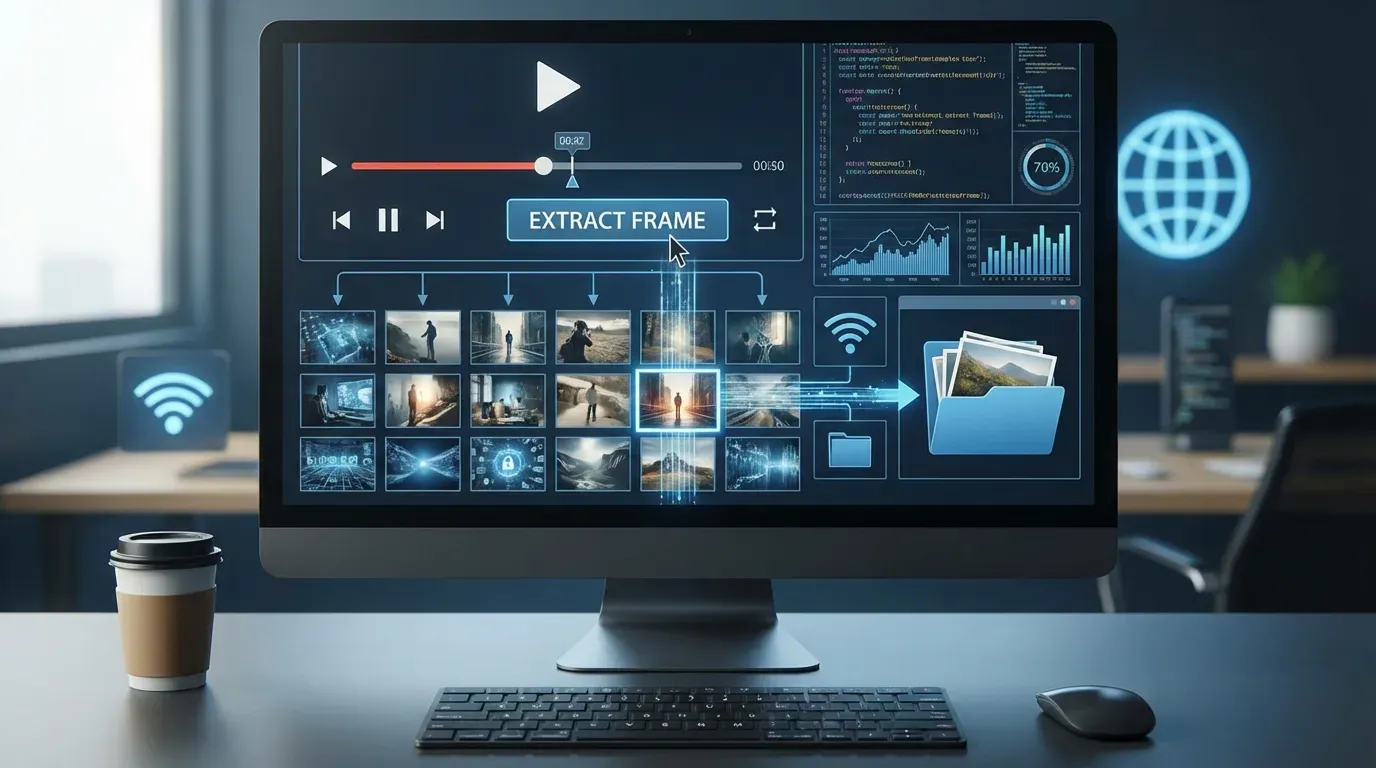
How to Extract High-Quality Frames from Video Online
Have you ever paused a video to catch a funny expression or a beautiful detail, only to find the screenshot is blurry or the playback controls are in the way? We’ve all been there.
Quick Solution: Use our free Online Video Frame Extractor to capture perfect images instantly.
Whether you’re a content creator needing a YouTube thumbnail, a designer looking for reference material, or just someone who wants to save a memory from a family video, extracting a clean, high-quality frame is essential.
Why Use an Online Video Frame Extractor?
While you can take a screenshot on your phone or computer, dedicated tools offer significant advantages:
- Original Resolution: Get the exact pixel data from the video file, often 1080p or 4K, rather than your screen resolution.
- No Interface Clutter: No play buttons, progress bars, or mouse cursors overlaying your image.
- Frame-by-Frame Precision: Navigate to the exact millisecond to capture the perfect moment.
- Privacy: Our tool runs locally in your browser, meaning your large video files don’t need to be uploaded to a server.
Step-by-Step Guide
Here is how you can use Blur Image Online to extract frames in seconds:
1. Upload Your Video
Go to our Video Frame Extractor page. Drag and drop your video file (MP4, WebM, etc.) into the designated area. Since processing is local, even large files load instantly.
2. Navigate to the Moment
Use the playback controls to find the general section. Then, use the progress bar or the “Previous/Next Frame” buttons (if available) to fine-tune your selection.
3. Capture and Download
Once you’ve found the perfect frame, simply click the “Download Frame” button. The image will be saved to your device immediately in high quality.
Tips for Best Results
- Use High-Quality Source Video: The quality of the extracted image depends entirely on the source video.
- Avoid Motion Blur: Try to pick frames where the subject is relatively still or the shutter speed was high.
- Check Lighting: Well-lit scenes produce sharper, less grainy still images.
Conclusion
Extracting frames from video doesn’t have to be complicated. With our free online tool, you can get professional results right in your browser.