Sharpen Blurry Image Online: A Practical Guide
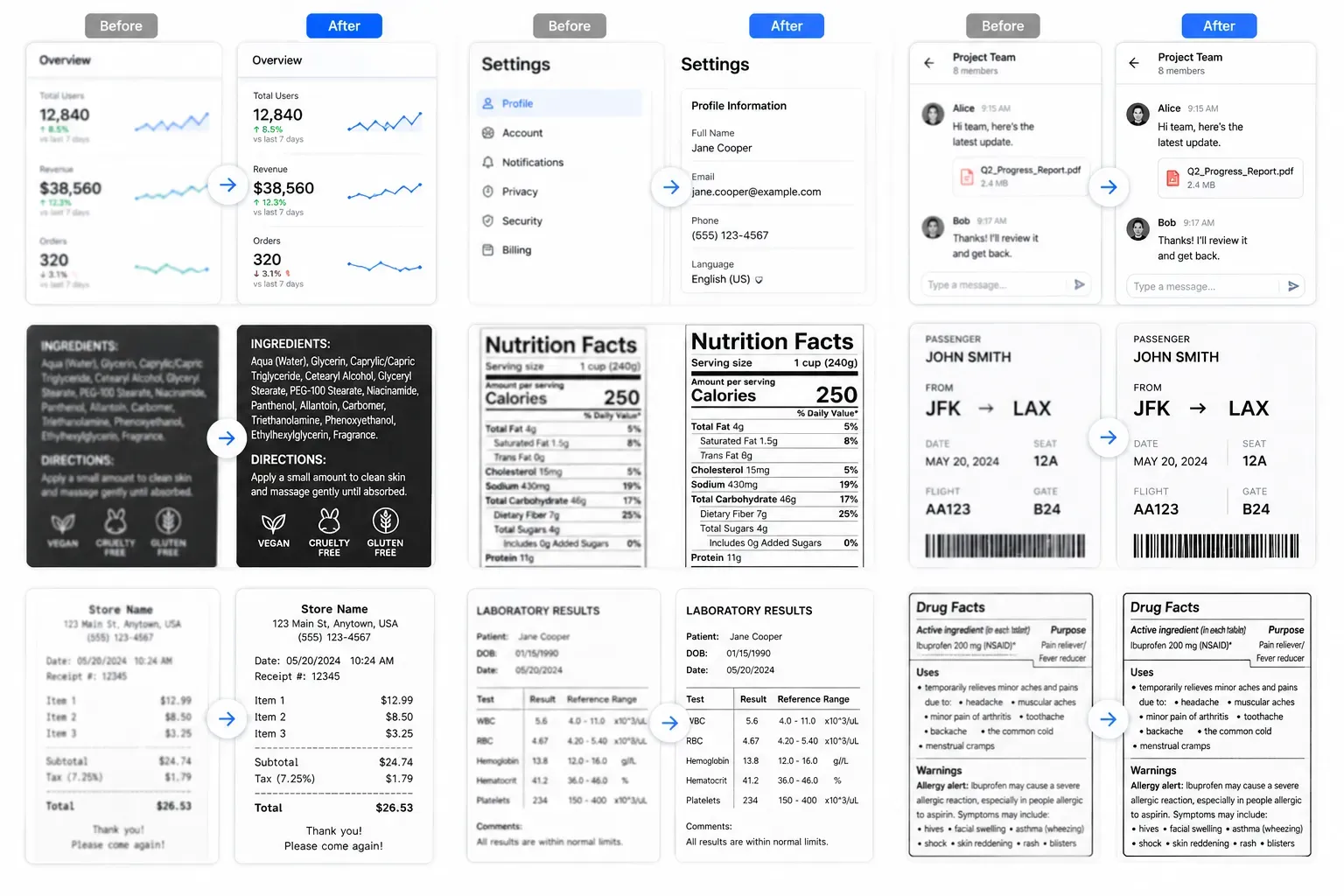
Sharpen Blurry Image Online: A Practical Guide
Sharpening is one of those edits that feels instantly satisfying. A soft image gets more edge definition, text looks cleaner, and the subject seems to pop.
But sharpening can also go wrong quickly. Too much of it creates halos, rough noise, crunchy texture, and unnatural faces.
This guide explains how to sharpen a blurry image online without turning it into an over-processed mess.
Quick Answer
Use Sharpen Blurry Image Online when the image is visibly soft but still contains detail. Run one AI enhancement pass, inspect the important areas, and keep the result only if it looks natural.
Sharpening vs Unblurring
People often use these words together, but they are not identical.
Sharpening usually means increasing contrast around edges. Traditional sharpen filters do this directly.
Unblurring tries to improve the appearance of an image affected by soft focus or mild motion blur. AI tools can combine edge enhancement with learned detail patterns.
In everyday use, the difference is simple:
- Use sharpening for a small clarity boost.
- Use AI unblur when the image is noticeably soft.
- Avoid both when the image is already sharp.
Images That Sharpen Well
Sharpening is useful for:
- Product photos with soft edges
- Blog images that look slightly flat
- Screenshots with fuzzy UI text
- Old digital photos
- Thumbnails that need a little more clarity
- Photos reduced by compression
It is less useful for:
- Strong motion blur
- Very low-resolution files
- Noisy night photos
- Faces with missing detail
- Images that were already heavily sharpened
How to Sharpen a Blurry Image Online
- Open Sharpen Blurry Image Online.
- Upload the image.
- Run the AI enhancer.
- Check edges, text, faces, and fine texture.
- Download the sharpened image if it looks better.
Do not judge only from a small preview. Zoom in enough to catch artifacts.
Warning Signs of Over-Sharpening
Watch for:
- Bright outlines around objects
- Rough skin texture
- Jagged text
- Strange hair detail
- Noisy shadows
- Plastic-looking faces
- Crunchy product labels
If these appear, the image may not be a good sharpening candidate.
Best Workflow
For most images:
- Sharpen or unblur first.
- Crop if needed.
- Resize for the final platform.
- Compress the final copy.
Do not repeatedly sharpen and compress the same file. Go back to the original when possible.
FAQ
Can I sharpen a blurry image online for free?
Yes. Use Sharpen Blurry Image Online to improve soft images in your browser.
Can sharpening fix out-of-focus photos?
It can help mild soft focus, but a completely out-of-focus image cannot be made perfectly sharp.
Should I sharpen screenshots?
Sometimes. If UI text is slightly fuzzy, sharpening may help. If text is tiny or distorted, the result may not be reliable.
Final Thoughts
Sharpening is best when used lightly and intentionally. The goal is a cleaner image, not maximum sharpness.
If your image is soft but still has detail, try Sharpen Blurry Image Online and compare the result carefully.