Clean the image without cropping it to death
Cropping can remove scale, mood, and context. A controlled blur lets you keep the subject and soften the parts that distract, reveal too much, or make the photo look less polished.
Private browser-based image editing
Sometimes the subject is fine but the background is doing too much: a messy room, a screen with private work, a house number, a face in the distance, or a sign that gives away the location. Use manual background blur when you want the image to stay useful but quieter and safer to share.
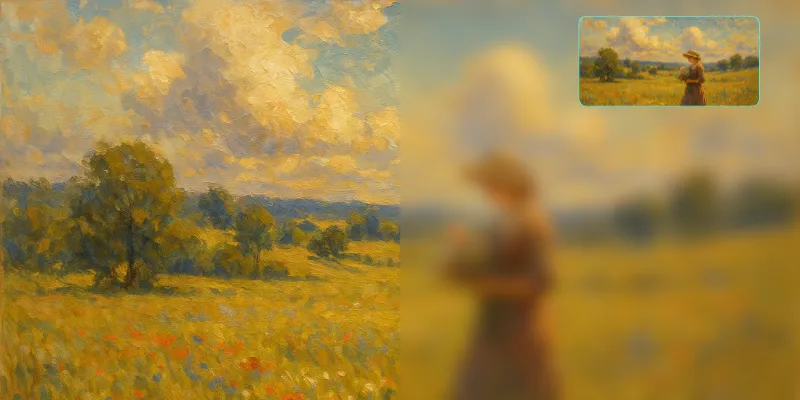
Upload your images, adjust blur strength, preview in real time and download the blurred image.
Cropping can remove scale, mood, and context. A controlled blur lets you keep the subject and soften the parts that distract, reveal too much, or make the photo look less polished.
Automatic portrait blur can struggle with hair, glasses, transparent objects, product edges, pets, and uneven lighting. If only one background area needs attention, brushing it manually is often faster and more predictable.
A profile photo may only need a gentle blur. A screen, document, address, or person in the background needs stronger treatment. The goal changes by image, so preview at full size before downloading.
From real editing jobs
The subject looks good, but the room, screen, sign, or background person pulls attention away.
You need a cleaner profile, listing, product, article, or presentation image.
Cropping would remove useful context, but the background still needs to calm down.
How it works
The workflow is intentionally simple: choose the image, blur the private area, inspect the preview, and download a safer copy.
Upload the image with a busy or private background.
Brush over the background area you want to soften.
Adjust blur strength for a natural look or stronger privacy.
Download the final image for your profile, listing, article, or post.
Yes. You can brush over a screen, sign, room detail, person, document, or any background area without blurring the whole image.
It can, as long as you paint carefully around the subject edge. Use a smaller brush near hair, glasses, and product outlines.
Use stronger blur when the background contains addresses, screens, documents, faces, license plates, or anything location-sensitive.
Open the blur editor, hide the details you do not want to share, and download the finished image in a few clicks.
Blur a background now