Works best for
- Soft focus or slightly blurry photos
- Small motion blur from handheld shots
- Screenshots or web images that need sharper edges
AI image clarity tool
Upload a blurry photo, soft screenshot, or compressed web image and sharpen it directly in your browser. This free AI image sharpener is built for realistic clarity: cleaner edges, more readable details, and no promise to recover what the original file never captured.
or click to browse from your device
Realistic results
Unblur Image Online is built for mild blur, soft focus, low-contrast details, blurry screenshots, and images that became fuzzy after compression or resizing. It improves visible structure without pretending that every badly blurred photo can be perfectly restored.
Best use cases
Use the AI image sharpener when a picture is almost good enough, but needs cleaner edges or better readability before you publish, share, archive, or continue editing. It helps users who search for a practical way to fix a blurry image online without opening complex photo software.
Improve slightly soft marketplace, real estate, and product photos before publishing or sending them to a customer.
Sharpen blurry screenshots, notes, UI captures, receipts, or reference images so text edges are easier to read.
Clean up casual photos that look soft after upload, messaging, or compression.
Make support screenshots, website captures, and visual references clearer before using them in a workflow.
AI clarity guides
Start with the guide that matches your image: a soft photo, a fuzzy screenshot, a product shot, or a picture that needs a cleaner but still natural result.
Improve a mildly blurry picture while keeping the final result realistic.
Use AI sharpening for soft photos, product images, and weak edges.
Learn what kinds of blurry photos can be improved and where the limits are.
Make fuzzy UI text and tutorial screenshots easier to read.
Improve clarity in web images, product shots, screenshots, and photos.
Built like a focused tool
A good unblur image online tool should not feel like a noisy demo. It should explain what it can improve, keep the result believable, and make it easy to decide whether the enhanced image is actually useful for sharing, publishing, or reading.
The Real-ESRGAN model runs in your browser after the first click. It loads only when needed and can be cached, so the main site stays lightweight.
The enhancement focuses on edges, texture, and readable detail. It is best for a natural clarity boost on blurry photos and screenshots rather than an overprocessed, crunchy look.
Severe motion blur, missing facial detail, and tiny compressed files may still be impossible to recover. The page tells you that before you waste time.
After sharpening, you can blur private details, compress the final image, or use it as a cleaner screenshot, listing photo, support attachment, or web graphic.
Better results
AI sharpening works best when the original image still contains useful detail. These small choices help the unblur image tool produce a clearer result without making the photo look harsh, fake, or over-sharpened.
Use the original photo or screenshot when possible. A file downloaded from a chat app or copied from another preview may already have lost the fine detail that an image enhancer needs.
The tool is most useful for soft focus, light camera shake, compressed web images, and blurry screenshots. Severe motion blur or missing text may only improve a little.
After processing, check faces, product labels, UI text, and edges at a normal viewing size. The best result is clearer and still natural, not oversharpened.
If the enhanced image will be shared publicly, blur private information first. If it will be uploaded to a website, compress the image after sharpening to keep the page fast.
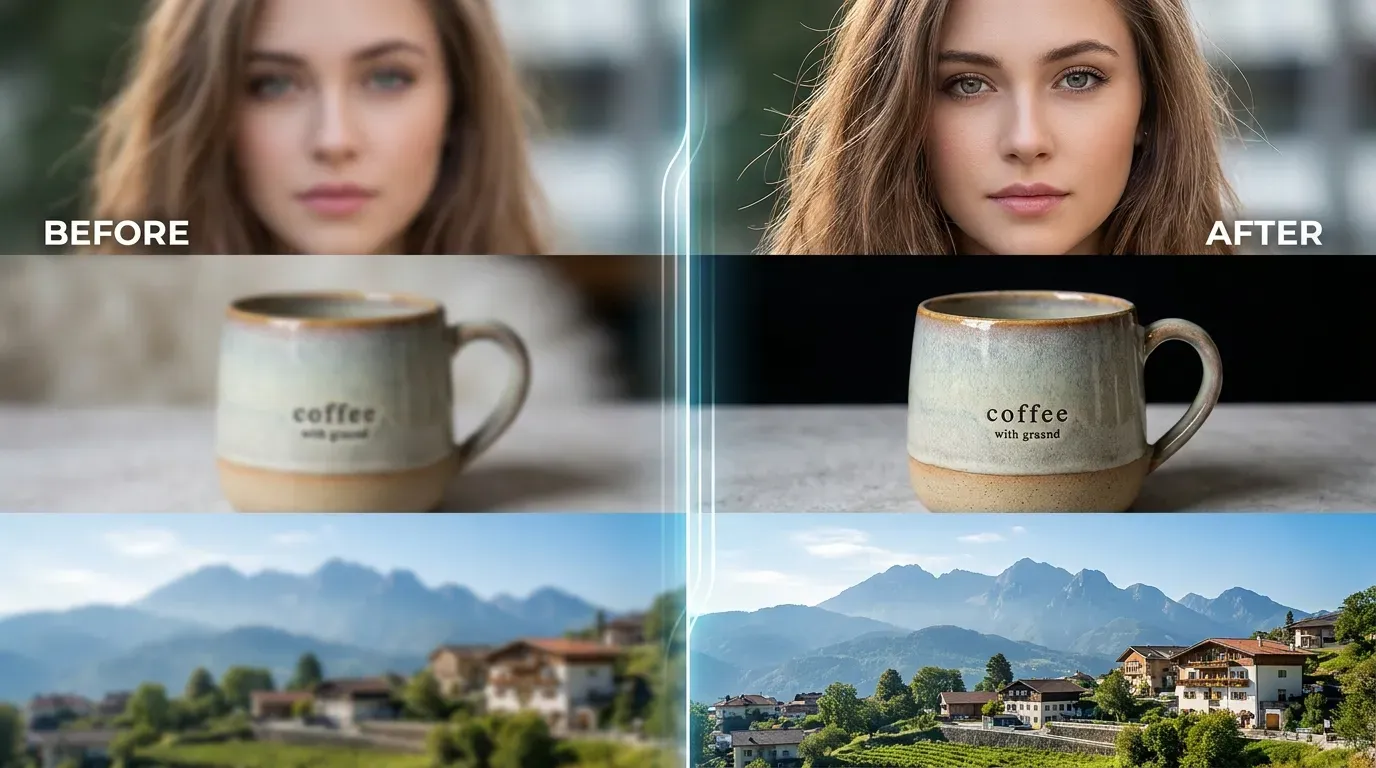
Use the AI unblur image tool to make soft portraits, product shots, and travel photos look clearer when the blur is light to moderate. It is ideal when a photo is close to usable but needs sharper edges.
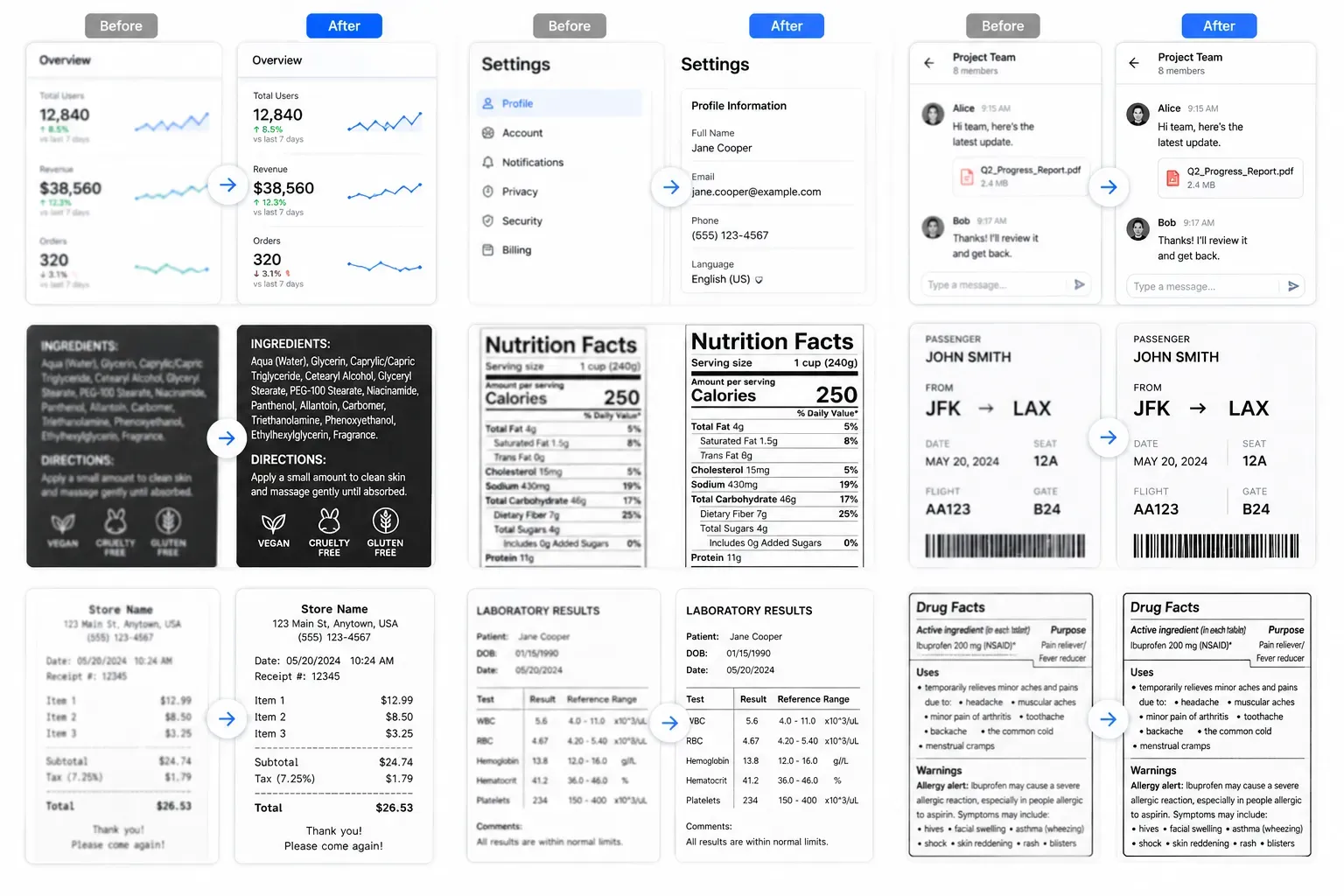
Improve blurry screenshots, labels, receipts, and small interface text so words and edges are easier to read before you save the result. This is useful for support tickets, tutorials, and reference images.
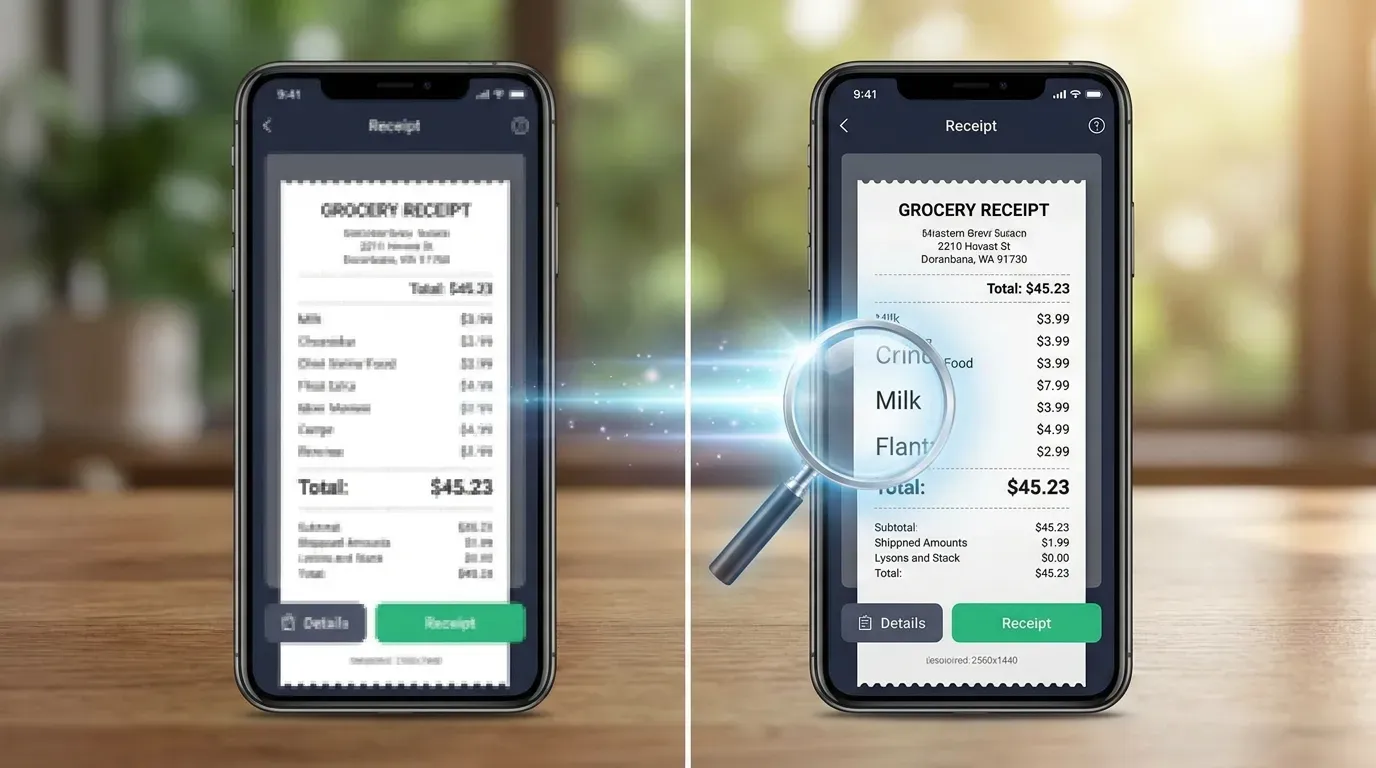
Enhance image clarity online without installing a desktop editor. Upload, process with AI, compare the before and after view, then download the sharper image when the result looks natural.
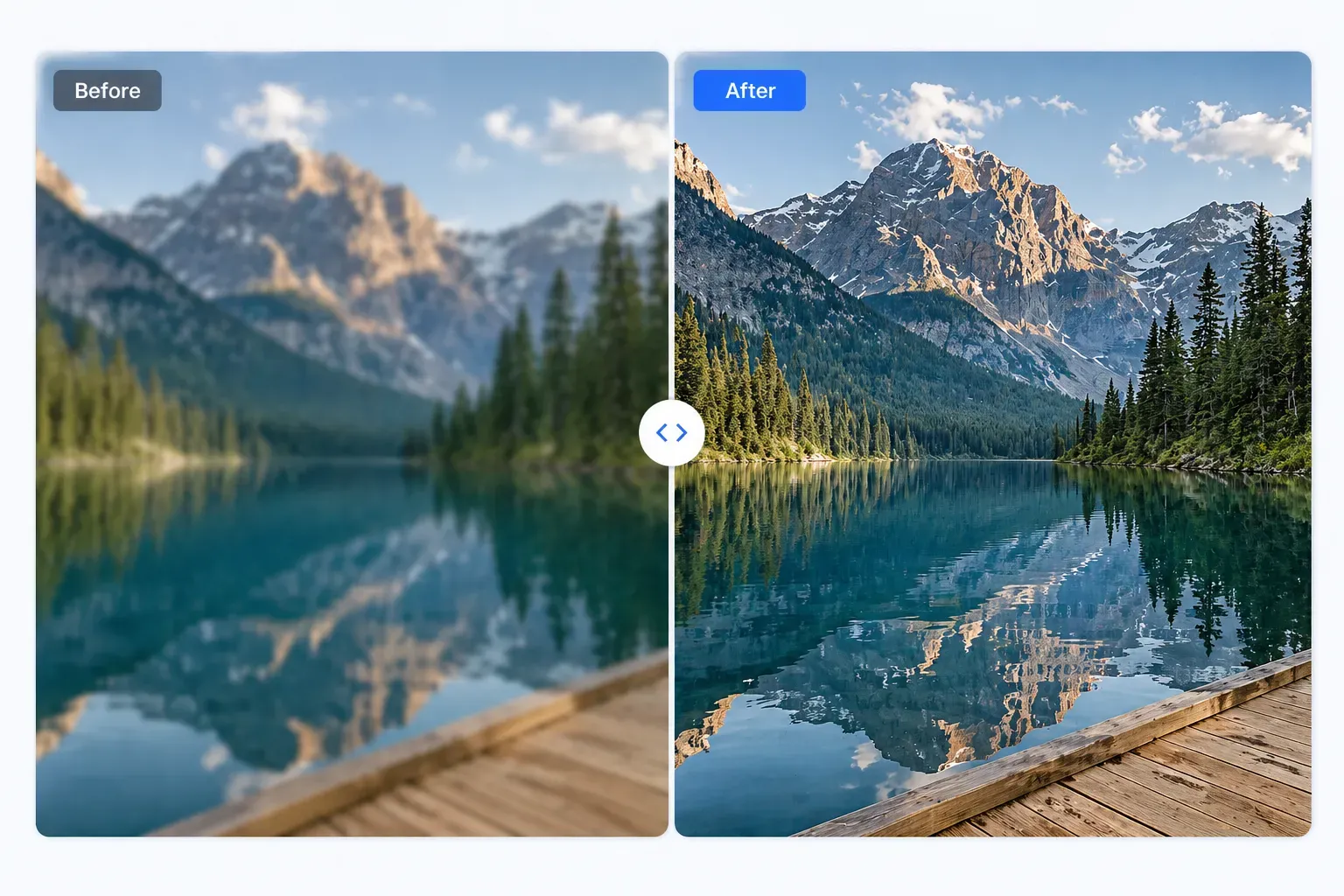
Clean up slightly blurry blog, listing, social media, and web images when you need a quick image sharpener for everyday publishing work, product pages, or visual notes.
A simple workflow for sharpening a blurry picture while keeping control of the final result.
Choose a JPG, PNG, WebP, BMP, or TIFF photo that has mild focus blur, motion blur, or soft detail.
The AI photo enhancer analyzes edges, texture, and contrast to create a clearer version of your image.
Compare the original and enhanced image, check that the result looks natural, and download the improved file.
Built for everyday unblur image tasks where you need a fast, realistic clarity boost rather than heavy manual editing or exaggerated AI restoration.
Helps recover visible edges, texture, and contrast from photos that are slightly out of focus.
Use the unblur photo tool in your browser without downloading photo editing software.
Review the sharpened image before saving so you can decide whether the enhancement is useful.
Unblur a picture online without account registration, subscription steps, or watermarks.
Continue editing
Hide private details after improving clarity, especially in screenshots or public-facing photos.
Compress the final image so it loads faster on websites and uploads more easily.
After improving a soft image, invert its colors to explore a different visual treatment.
Add a subtle retro grain texture when you want a more stylized finish.
Feedback from people who need quick photo sharpening, clearer screenshots, and better web images.
"I used the AI unblur image tool on listing photos that were a little soft. It did not invent detail, but it made edges and room features easier to see."
Tom Richards