Good for photos that are almost right
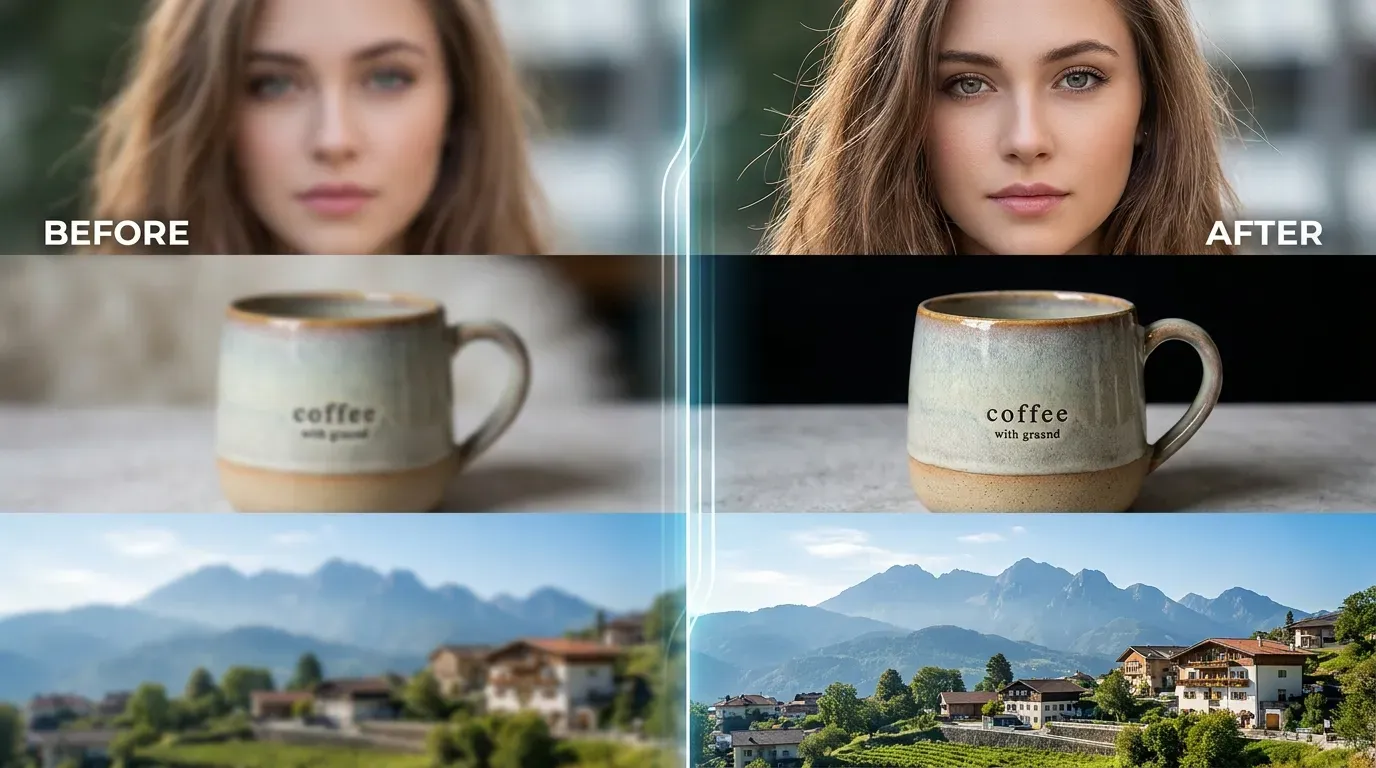
If the photo has a clear subject but weak edges, soft focus, or slight camera shake, enhancement can make it more usable for sharing, listings, thumbnails, or personal archives.
AI image clarity tool
A blurry photo can still be worth saving if the subject is visible and the blur is not too severe. This page helps you test a practical AI enhancement workflow for portraits, product shots, old photos, and casual images that need cleaner detail.
or click to browse from your device
If the photo has a clear subject but weak edges, soft focus, or slight camera shake, enhancement can make it more usable for sharing, listings, thumbnails, or personal archives.
Very heavy blur, tiny files, or images with missing detail may only improve slightly. The tool is best used as a quick fixer, not a guarantee of perfect restoration.
A fixed photo should still look like a real photo. Check faces, skin, hair, text, and background texture before deciding to keep the result.
Practical expectations
A portrait is slightly out of focus but still meaningful.
A marketplace product photo needs clearer edges.
An old digital photo looks soft but has visible detail.
How it works
Upload the best version of your image, run the AI enhancer, compare the result, and download the clearer copy when it looks natural.
Upload the blurry photo from your device.
Run the AI enhancement.
Compare the original and result carefully.
Download the fixed copy if it looks natural.
Mild blur in portraits can often be improved, but very out-of-focus faces may not produce a natural result.
Some old digital photos can be made clearer if they still contain enough detail. Very small or damaged files have limits.
Keep the workflow short. Fix blur first, then crop, resize, or compress the final image if needed.
Use the unblur tool on this page, check the result carefully, and download the version that looks clean enough for your next use.
Fix blurry photo