Upload a GIF
Import an animated GIF from your device. The frames are decoded locally in your browser.
Animated GIF privacy tool
Blur faces, captions, usernames, signs, and private details in animated GIFs. Select an area, choose Gaussian blur, pixelation, or mask, preview frames, and export a cleaned GIF in your browser.
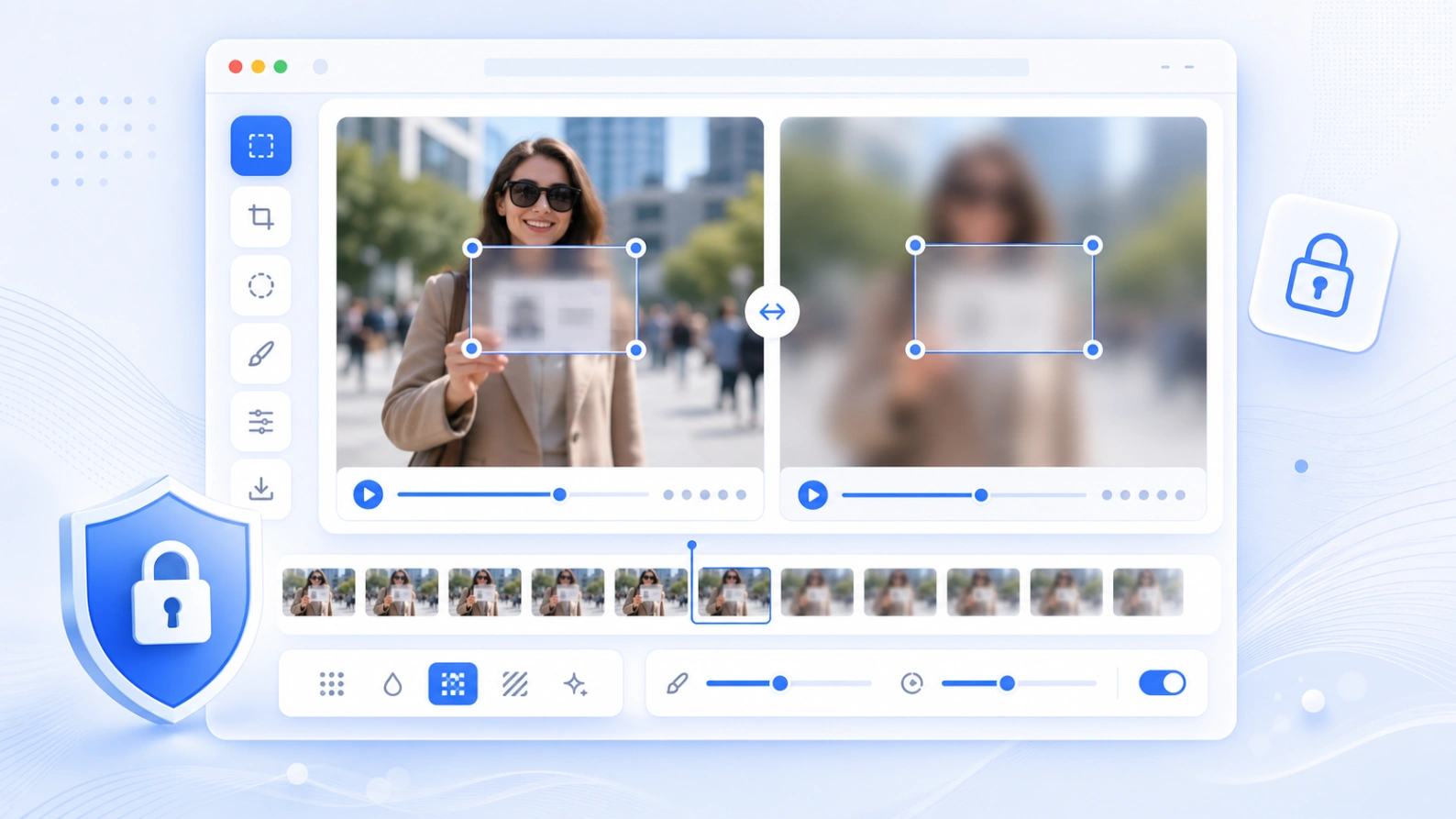
Best for short reaction GIFs, screen recordings, chat captures, product demos, and social clips that need quick privacy edits before sharing.
How it works
Use Blur GIF Online when a short animation includes a face, message, username, label, license plate, or other detail that should not be public.
Import an animated GIF from your device. The frames are decoded locally in your browser.
Drag the editable box over a face, caption, sign, username, license plate, or other detail.
Use soft Gaussian blur, pixelation, or a solid mask depending on how obvious the edit should be.
Preview the original and blurred frames side by side, then download the processed animation.
Common uses
GIFs are often reused in chats, support guides, social posts, product pages, and internal documentation. A quick blur pass helps remove private details while keeping the animation useful.
Hide people in reaction GIFs, event clips, classroom snippets, or public examples before posting.
Cover usernames, emails, chat messages, order IDs, private captions, or customer details.
Mask storefront signs, license plates, room labels, badge names, or other visible identifiers.
Use pixelation when you want the redaction to be obvious without fully blacking out the animation.
Clean product demos, support GIFs, and workflow recordings before adding them to a help center or blog.
Privacy and limits
Your GIF is processed in the browser for preview and export. Large animated GIFs can use a lot of memory, so shorter clips work best on mobile devices.
Frames are decoded for preview and export in the browser, which keeps the workflow fast for short GIFs.
Large or high-frame-count GIFs can use a lot of memory. Compress or crop the GIF first for smoother export.
The selected area is applied across the animation, which works well for stable faces, captions, signs, and UI details.
If a face or object moves across the frame, convert the clip to video and use keyframes on the video blur page.
FAQ
Answers for GIF format support, privacy, quality, preview, and export.
Yes. Upload a GIF, select the area to hide, choose a blur effect, preview frames, and export a new blurred GIF.
You can blur faces, usernames, captions, signs, license plates, order IDs, chat messages, and other private details.
Yes. It reads the frames and exports an animated GIF, not only a still image.
Choose Gaussian blur for a soft edit, pixelation for visible redaction, or mask for stronger covering.
The editor runs in the browser for preview and export. Keep the page open while the GIF is being processed.
Animated GIFs contain many frames. Each frame must be redrawn, blurred, color-quantized, and encoded again.
This editor applies one selected area across the animation. For targets that move a lot, use the video blur tool with keyframes.
Related tools
Blur faces, text, screenshots, and private details in still images.
Open tool →Add timed blur areas and keyframes to short videos.
Open tool →Make redactions obvious for faces, plates, screenshots, and documents.
Open tool →Reduce image file size after editing for faster sharing.
Open tool →