Precise enough for everyday privacy
Use the brush on faces, text, plates, documents, screens, product labels, receipts, background people, or anything that should not appear in the final image.
Private browser-based image editing
Most real editing tasks are not about blurring the whole picture. You may only need to hide one face, one name, one screen, one address label, or one distracting object. This page is built for that focused job: upload an image, paint over the exact part that needs attention, adjust the blur, and keep the rest of the image clear.
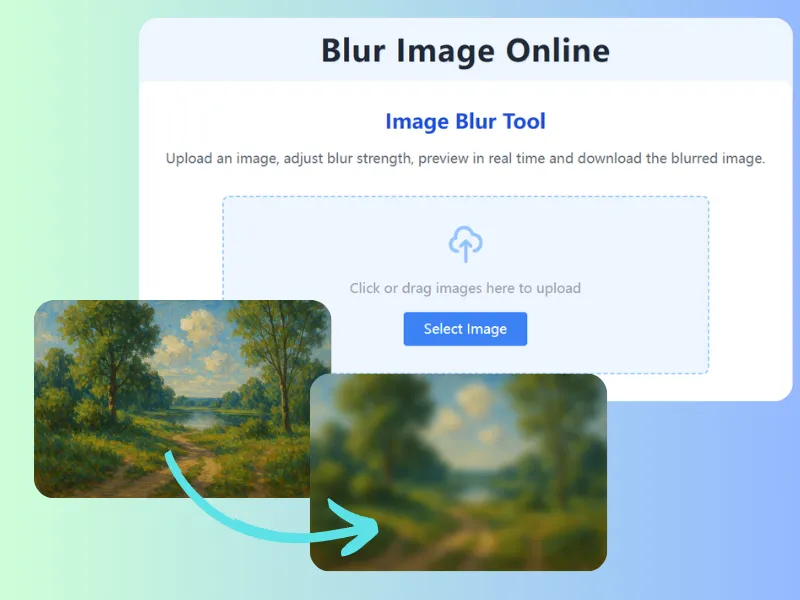
Upload your images, adjust blur strength, preview in real time and download the blurred image.
Use the brush on faces, text, plates, documents, screens, product labels, receipts, background people, or anything that should not appear in the final image.
A full-image blur can ruin the useful part of a photo. Local blur keeps the subject, composition, and story intact while removing the detail that creates risk or distraction.
After blurring, check the image at normal size and zoomed size. If the hidden area is still readable, widen the painted area or increase the blur strength.
How it works
The workflow is intentionally simple: choose the image, blur the private area, inspect the preview, and download a safer copy.
Upload the image that contains one or more areas to hide.
Choose the paint blur mode and brush over the exact area.
Adjust brush size and blur strength until the detail is hidden.
Download the edited image with the rest of the picture still clear.
Yes. You can paint over several areas before downloading the final image.
Yes. Manual paint blur only affects the areas you cover with the brush.
It is best for privacy details, screenshots, faces, labels, license plates, addresses, documents, and small distractions.
Open the blur editor, hide the details you do not want to share, and download the finished image in a few clicks.
Blur part of an image