How to Blur Part of an Image Online
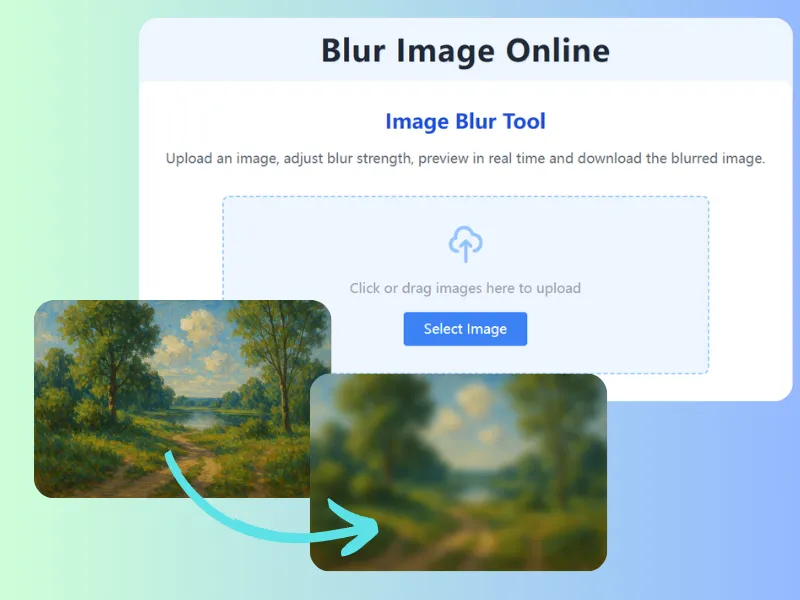
How to Blur Part of an Image Online
Most image privacy tasks are small. You do not need to blur the entire photo. You need to hide one face in a group picture, one address label on a package, one license plate, one screen in the background, or one line of private text in a screenshot.
That is why a manual blur tool is often more useful than a one-click full-image effect. You decide exactly which part of the image should change and which part should stay clear.
Quick Answer
Use Blur Part of Image Online when only one area needs to be hidden. Upload the image, choose paint blur, brush over the private or distracting part, preview the result, and download the edited copy.
When Partial Blur Is the Right Choice
Partial blur works best when the image is mostly fine but one detail creates a problem.
Common examples include:
- A face in a group photo
- A child in the background
- A customer name on a receipt
- A phone number in a screenshot
- A license plate in a car photo
- A home address on a package
- A computer screen behind a person
- A badge, ID card, or document
- A distracting object in the background
- A private note on a desk
In these cases, cropping may remove too much context. Full blur may ruin the image. Local blur keeps the useful part intact.
How to Blur One Part of an Image
- Open Blur Part of Image Online.
- Upload your JPG, PNG, WebP, or screenshot.
- Switch to the paint blur mode.
- Adjust the brush size for the area you want to cover.
- Paint over the private detail.
- Increase or reduce blur strength.
- Download the edited image.
Use a smaller brush near edges and a larger brush for broad areas like backgrounds or screens.
How Much Blur Is Enough?
It depends on what you are hiding.
For distractions, a gentle blur is usually enough. A messy background, a busy shelf, or an unimportant object may only need to be softened.
For privacy details, use stronger blur. Faces, names, addresses, numbers, IDs, and plates should not be recognizable after zooming.
For credentials or legal information, be more cautious. Passwords, API keys, financial details, and identity documents should be covered very strongly.
Blur With a Little Padding
Do not paint only the exact letters or face outline. Add a little padding around the private area.
Padding helps because images are often resized, sharpened, cropped, or compressed after upload. A detail that looks hidden in your editor may become easier to guess later if the blur area is too tight.
This is especially important for:
- Short numbers
- Names
- Plate numbers
- QR codes
- Barcodes
- Email addresses
- Small faces
Check the Whole Image
After you blur the target area, scan the rest of the image. Privacy clues often appear twice.
A license plate may show in a reflection. A name may appear in a browser tab and again in a sidebar. A face may be visible in a mirror. A package address may appear on two labels.
Take the extra few seconds. It is much faster than fixing the image after it has already been shared.
FAQ
Can I blur multiple parts of one image?
Yes. You can paint over several separate areas before downloading.
Can I keep the rest of the image sharp?
Yes. Manual blur only affects the parts you paint over.
Should I use blur or pixelation?
Use blur for a natural look. Use pixelation when you want the privacy edit to be obvious.
Can I blur part of an image on mobile?
Yes, but for very precise edits, a desktop or tablet can be easier.
Final Thoughts
Partial blur is a small edit that can prevent a large privacy mistake. Before posting or sending an image, look for the one detail that should not travel with it.
If the rest of the image is useful, do not delete it and do not blur everything. Use Blur Part of Image Online and hide only what needs to be hidden.