How to Blur a QR Code in an Image Online
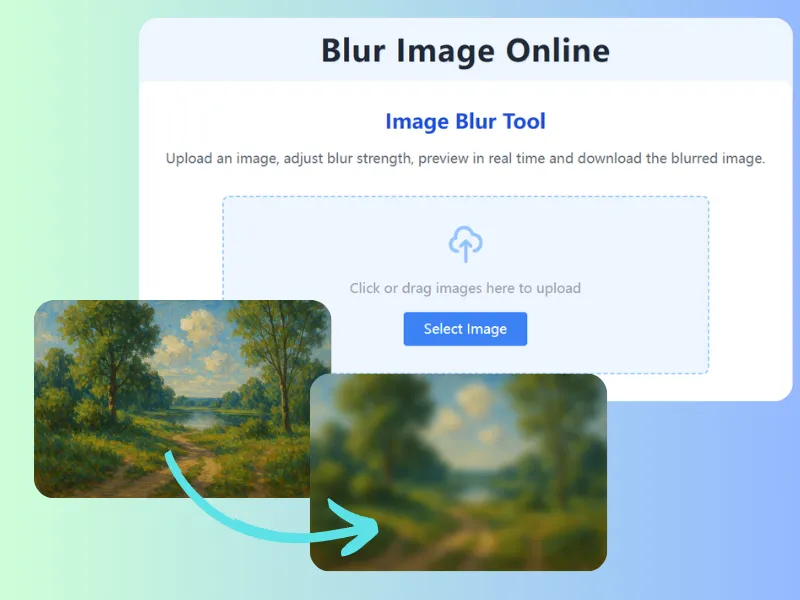
If you need to blur a QR code in an image online, distinguish a visual demonstration from removing confidential data. Tickets, payment links, Wi-Fi credentials and login QR codes should be removed or covered completely with an opaque mask in a suitable editor, then exported and inspected. Blur Image Online can apply a visual blur to a selected area, but it does not provide solid masks or verify that a code cannot be decoded.
Quick Takeaways
- Blur the entire QR code, not only the center or corners.
- Include a margin to reduce missed edges in a visual edit; padding does not prove a code is unscannable after resizing or compression.
- Check for duplicate codes in thumbnails, previews, or reflections.
- Remove ticket, payment and login QR codes, or mask them fully opaquely in a suitable editor; do not rely on stronger blur.
- Before sharing screenshots, review nearby details such as names, emails, and order numbers too.
Why People Need to Blur QR Codes
QR codes often look harmless because they are small and easy to ignore. But they are designed to be scanned quickly, even from imperfect photos and screens.
This article is for everyday users who share screenshots, travel confirmations, product photos, support images, or social posts and want a simple way to hide QR codes without editing software.
Common examples include boarding pass screenshots, event tickets, payment screens, return labels, and login QR prompts. When a confidential code is the risky part and the rest of the image is still useful, remove the code or fully cover it with an opaque mask in a suitable editor.
What Can a Visible QR Code Reveal?
A QR code does not always contain private text in plain view, but it can still send people somewhere or connect them to a transaction. The Federal Trade Commission notes that QR codes can be used to send people to harmful links, which is a useful reminder that codes are functional links or actions in visual form. Consumer guidance: Scammers hide harmful links in QR codes to steal your information.
In shared images, a visible code may expose:
- ticket or check-in access
- payment requests
- login or device-pairing flows
- return or shipping information
- contact cards or profile links
- internal tools or private pages
Not every QR code is high risk, but you should treat any code tied to identity, money, travel, access, or customer records as something worth hiding.
When Cropping Would Remove Useful Context
Cropping works when the QR code sits at the edge of the image and removing it does not hurt the point of the picture. But many screenshots and photos need the surrounding context.
For example, a support screenshot may need the full error message, a travel post may need the boarding pass layout, and a shipping image may still need the package photo. A visual blur can preserve surrounding context, but it does not reliably remove actionable information. For confidential codes, preserve the context by fully covering the code with an opaque mask in a suitable editor.
For screenshots specifically, Blur Screenshot Online is useful when the QR code appears alongside tabs, names, or account details. For mixed photos or documents, Blur Part of Image Online gives you more control over the exact area.
How to Blur a QR Code in an Image Online
1. Upload the Original Image
Start with the clearest copy you have so you can locate the full code and nearby details. Distortion in a compressed screenshot does not show that the code is unusable.
2. Cover the Full Code With Extra Margin
Do not blur only the middle square. Cover the entire QR code, including the outer edges and a little space around it.
A margin helps avoid leaving parts of the code outside the selection. It does not establish resistance to decoding, resizing or compression. Remove confidential codes or use fully opaque masking in a suitable editor.
3. Review the Visual Effect Without Treating It as a Security Test
A visual effect may soften the grid or turn it into blocks. Neither appearance establishes that the code cannot be decoded, regardless of the effect strength.
For confidential codes, use omission or fully opaque masking in a suitable editor. Visual softness and an unsuccessful scan with one app are not proof that a code cannot be decoded.
4. Check Nearby Sensitive Details
The code itself may not be the only problem. Ticket screenshots often include names, times, seat numbers, or booking references. Shipping labels can include phone numbers or addresses. Payment images may show account names or amounts.
Before downloading, scan the whole image once more.
5. Download and Share Only the Edited Copy
Keep the original for yourself and send the edited version. Sending the wrong file is still a common privacy mistake.
When to Use Pixelation Instead of Blur
Blur looks softer; pixelation makes a visual edit obvious. Neither effect is a verified security treatment for a confidential code.
For a private ticket, travel, payment or login code, remove the whole code or use a fully opaque mask in a suitable editor. The blur editor cannot validate that a QR code has become unusable.
If disclosure would cause harm, do not depend on visual blur or pixelation. Check repeated codes and nearby plain-text information as well as the exported file.
Common Mistakes When Hiding a QR Code
Blurring Too Tightly
A selection that stops at the black-and-white square can miss outer edges. Extra margin helps avoid that selection error; it does not establish that the code cannot be decoded.
Forgetting a Second Copy of the Code
Some apps show the same QR code in a main view and a thumbnail, or in a reflected screen, preview card, or printed label nearby. Hide every visible copy.
Focusing Only on the Code
After editing the code, the image may still reveal names, addresses, order IDs, or other useful clues. Treat the edit as a full privacy review, not a one-object task.
Using a Beautiful but Weak Effect
A polished or very strong visual effect is not proof that a machine-readable code is unusable. Remove confidential codes or fully cover them with an opaque mask in a suitable editor.
A Simple Rule for Travel, Tickets, and Payments
If someone else could use the code, redeem the code, or learn something important from the code, hide it before sharing. That includes boarding passes, event tickets, transit passes, payment codes, check-in screens, and device sign-in prompts. The same mindset applies to barcodes, short links, and other scannable visual identifiers.
FAQ
Can a blurred QR code still be scanned?
Yes. A visual blur can leave usable structure. Neither full-size visual inspection nor a failed scan with one app proves the code cannot be decoded. For confidential codes, remove them or mask the entire code fully opaquely in a suitable editor.
Should I blur or crop a QR code out of a screenshot?
Remove the code when it is unnecessary. If confidential data must be hidden while preserving the surrounding layout, use fully opaque masking in a suitable editor rather than relying on visual blur.
Is blur enough for ticket or boarding pass QR codes?
Do not rely on blur for ticket, boarding-pass, payment or entry codes. Remove the code or mask it fully opaquely in a suitable editor and inspect the exported file. This blur editor does not provide solid masking or decoding validation.
What else should I hide near a QR code?
Check for names, booking references, tracking numbers, account details, phone numbers, addresses, and timestamps. The code is often only one part of what makes the image sensitive.
Conclusion
For a visual QR demonstration, cover the full selected region and inspect the exported file. For a confidential code, use omission or fully opaque masking in a suitable editor instead. Review nearby fields and repeated codes; visual blur does not establish that the code is unusable.
Start with Blur Image Online when you need a quick browser-based fix, or use Blur Screenshot Online when the QR code appears inside a screenshot with other private details. A thirty-second privacy edit is usually much easier than dealing with a shared image after it has already spread.