How to Blur a Picture: Whole Photo, Faces, or One Part
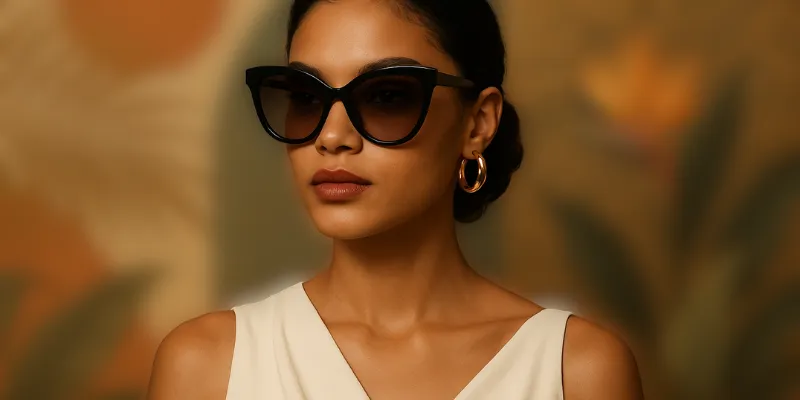
To blur a picture online, open Blur Image Online, select your photo, choose a blur effect, adjust its strength, and download the result. To blur only one area, use Paint Blur instead of applying the effect to the whole photo.
The right workflow depends on what you want to change. Softening a photo for a background is different from hiding a face or a line of text. Start with the option that matches the task.
| What you want to do | Where to start | What stays clear |
|---|---|---|
| Soften an entire picture | Whole-photo blur | Nothing: the effect covers the image |
| Blur just one object or detail | Blur part of an image | The area outside your selection |
| Hide names or screenshot text | Blur text in an image | Unselected text and layout |
| Blur faces in a group photo | Face blur tool | People and areas you leave unselected |
| Use visible blocks instead of soft blur | Pixelate image | The area outside your selection |
How to blur a whole picture
- Open the photo blur editor. Select an image in the whole-image tab. On a phone, select an existing photo or use the camera option when available.
- Choose Gaussian blur for a smooth, soft result. Pixel blur produces visible blocks rather than a photographic defocus effect.
- Adjust the strength while watching the preview. Start low for decorative backgrounds and increase it until distracting detail softens enough for your design.
- Download the edited image. Open the saved file to confirm the result rather than relying only on the editor preview.
Whole-photo blur works for an abstract background, a presentation backdrop, or a design where text will be placed over the image. If you want the subject to stay sharp, switch to a selective workflow instead.
How to blur part of a picture
Open Blur Part of Image, which starts in Paint Blur. Select the photo, then choose a brush, rectangle, or freehand selection according to the shape of the area.
Use a rectangle for a screen, label, or straight line of text. Use a brush for irregular areas. Reduce the brush size near an edge you want to preserve. Cover the entire target with a small margin so that letters, facial edges, or object details do not remain visible around the selection.
If you accidentally cover too much, undo the edit and try again with a smaller selection. Inspect the entire image before downloading: the same private detail can appear in a reflection, sidebar, or notification.
How to blur faces in photos
The face blur tool can detect faces and mark editable boxes. Upload one photo or a batch, run detection, and review every result. Move or resize boxes that do not cover a face correctly, remove incorrect detections, and use the manual brush or rectangle tool for missed faces.
Detection is a starting point, not a complete privacy check. Small faces, side profiles, reflections, or partially hidden faces may need manual editing. Clothing, name badges, locations, and context can still identify a person even when their face is blurred.
How to blur text in an image
Use Blur Text in Image for ordinary screenshot cleanup. Select the whole line with padding, adjust the strength, and check the downloaded image at its original size. Short words and numbers can remain guessable even when individual letters look soft.
For passwords, API keys, identity documents, financial records, or other highly sensitive information, remove the area or use a fully opaque redaction in an appropriate editor. Blur and pixelation do not guarantee that information cannot be inferred. If a credential has already been shared, replace or revoke it; editing the image does not undo the exposure.
Blur or pixelate: which effect should you choose?
Gaussian blur blends neighboring pixels for a softer appearance. It is useful for visual backgrounds and reducing distraction. Pixelation turns detail into larger blocks and makes the edit more obvious. The pixelation tool opens with pixel blur selected.
Neither effect should be treated as a security guarantee. Choose based on appearance for low-risk edits, and use removal or opaque coverage when information must not be disclosed.
Check the exported picture before sharing
- Open the downloaded file and zoom in on every edited area.
- Check corners, reflections, browser tabs, labels, and repeated names.
- Review the image at the size at which it will be published; small previews can hide mistakes.
- Keep the original separately and share the edited copy.
- Check metadata separately if location or device information matters. Visible blur alone does not establish that metadata has been removed.
Common questions
Can I blur a picture on my phone without installing an app?
Yes. Open the browser editor, select a photo, apply the effect, and download the copy. Saving behavior varies by browser, so check Downloads or your browser’s save menu after exporting.
Can I keep the subject sharp and blur the background?
Yes, by manually selecting the background in Blur Background Online. Work carefully around hair and subject edges. This is a manual selection workflow, not automatic portrait segmentation.
Does blurring remove something from the original file?
The editor exports a separate edited copy. It does not delete your original image or retract copies that you have already shared.
Why does my blurred text still look readable?
The effect may be too weak, the selection may miss character edges, or the text may be inferable from context. Do not keep increasing blur indefinitely for sensitive information; remove or cover it completely with an appropriate redaction tool.