Pixelate Image Online: When to Use Pixelation Instead of Blur
Gaussian blur vs pixelation vs solid mask: which should you choose?
Use blur for softening a photo or a low-risk visual distraction. Use pixelation when you want visible blocks. For sensitive text, remove the information or use a completely opaque mask in a suitable editor, then export and inspect a flattened image. Unreadable-looking letters are not proof of secure redaction.
Pixelate Image Online provides the block effect. Blur Screenshot Online helps you manually select areas while preserving interface context. Our editor does not currently provide a solid opaque mask: the mask below is an offline comparison, not a feature claim.
| Method | What changes | Useful for | Important limitation |
|---|---|---|---|
| Gaussian-style blur | Blends nearby pixels into a smooth result | Backgrounds and visual distractions | Shapes and context can retain information |
| Pixelation / mosaic appearance | Samples the region at lower resolution and enlarges blocks | An intentionally visible edit | Block values can still encode information about the source |
| Solid opaque mask | Replaces the covered region with a single opaque color | Removing sensitive text from the shared raster image | Missed edges, other fields, metadata and editable source files still need review |
A reproducible comparison on one fictional screenshot
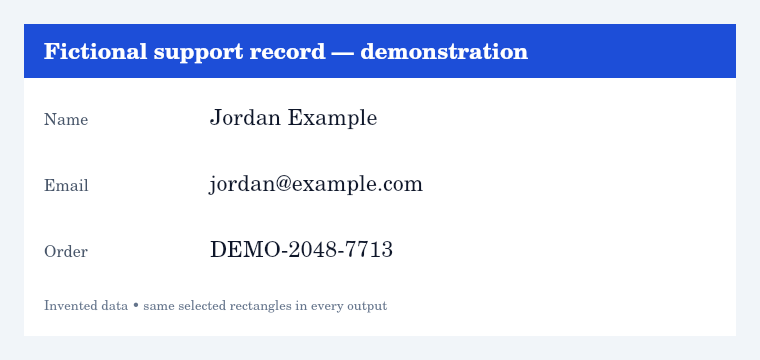
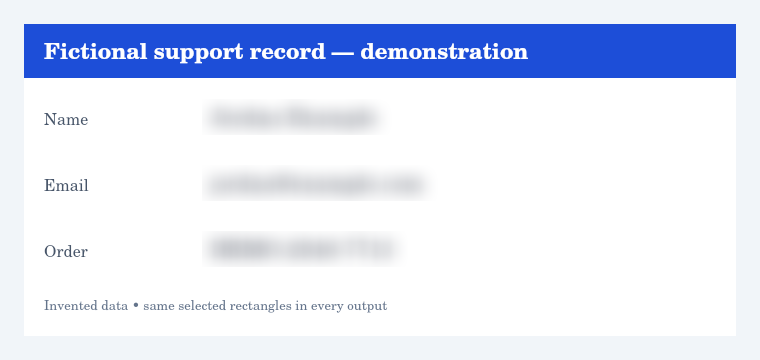
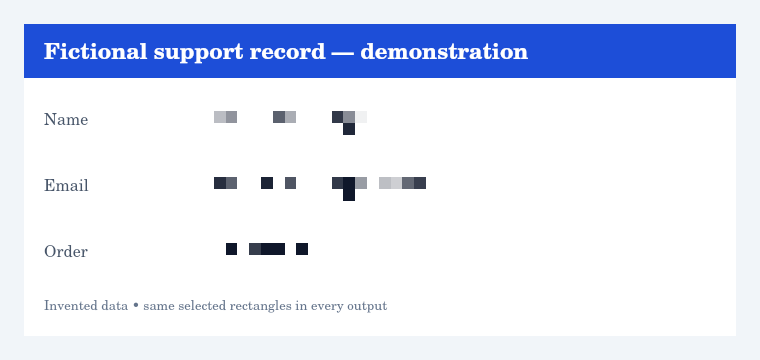
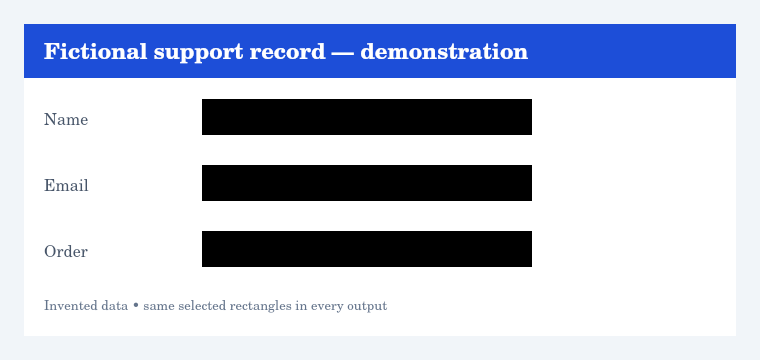
We created a 760 × 360 support record with an invented name, an example.com email and a DEMO order number. No customer information or real identity is used. The same three rectangles cover each value in every version; the labels remain visible. These are actual rendered outputs, not CSS filters or AI-generated after images.
Settings and method
The top-left coordinates are measured in source-image pixels. Each selection is 330 × 36 pixels at x = 202; y = 99, 165 and 231. We executed the existing editor’s rectangle and effect functions unchanged in an offline Canvas runtime. The UI option called Gaussian uses stackblur-canvas’s StackBlur implementation; it is not a separate mathematical Gaussian-convolution benchmark.
The Gaussian radius/strength is 18. Pixel strength is 24: the current function uses a nominal block size of 12, sampling each rectangle to 28 × 3 pixels before enlarging it without smoothing. These settings describe this image, not a recommended security threshold. The opaque comparison uses Canvas fillRect with opaque black in a separate offline script. All four published originals are WebP at quality 100.
After decoding the solid-mask WebP, we checked every pixel inside the three rectangles: each was black with alpha 255. That establishes coverage for these rectangles in this file only. It does not assess the rest of an image, metadata, platform copies, or anonymity.
What happens after resizing and compression?
We also generated 380 × 180 versions of all three treatments using Canvas resizing followed by JPEG quality 70. Open the actual samples: blur after resizing, pixelation after resizing, and opaque mask after resizing.
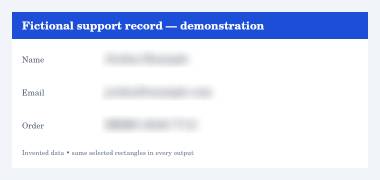
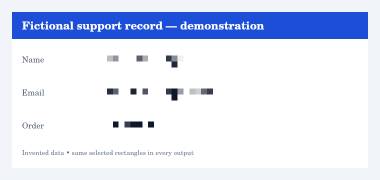
At half size the rows and edited areas remain distinguishable, while small text and block edges appear different. JPEG may introduce edge artifacts. This visual inspection does not establish what a person or recovery model could infer. We did not run OCR, reconstruction attacks or recognition-rate measurements, and did not test any social platform’s recompression.
How to pixelate a selected part of an image
- Open Pixelate Image Online and upload an image suitable for a visual edit.
- Keep Pixel selected in Paint Blur. A stronger Gaussian blur is still blur, not pixelation.
- Select a complete field with a rectangle, or use the brush for an irregular detail. Leave padding around characters and edges.
- Adjust strength and inspect the selected region. If the goal is removing secrets, stop and use omission or opaque redaction in a suitable editor instead.
- Download and reopen the exported image. Review it at full size and its intended sharing size.
For a face rather than a text field, use Blur Face Online and review the full face, missed detections, reflections and identifying context. Pixelation does not remove clothing, badges, tattoos or location clues.
Why privacy edits can fail
Uncovered edges: a selection may miss a character, a line descender or a reflected value. Cover the complete field with padding rather than tracing each letter.
Repeated data: an email can appear in a sidebar, a tab title and a message. Review the whole screenshot, not just the center. The image privacy checklist covers people, text, codes and location clues.
Predictable content: fonts, string length, nearby labels and known formats can constrain possible values. Published research on mosaicing and blurring for document redaction demonstrates recovery of text under studied conditions. Bishop Fox’s Unredacter demonstration is another concrete reason not to treat text pixelation as secure redaction. These sources are not results from our example.
Editable covers: a shape in an editable document may be movable or transparent. Use a fully opaque cover and export a flattened raster image, then inspect that actual export. Do not attach the layered source or the original by mistake. This advice does not describe PDF redaction or guarantee metadata removal.
Context outside the mask: captions, filenames, codes, location clues and other records can disclose the same information. Replacing selected pixels does not anonymize the whole scene.
A practical export review
Reopen the downloaded file in an image viewer. At 100% size, inspect selection edges and all repeated fields. Check a resized copy at the intended publishing size. If a platform recompresses the upload, inspect its rendered copy too; do not assume it matches your preview. Check that you are sharing the reviewed export and that its filename, caption and metadata are appropriate.
For passwords, API keys, recovery codes or highly sensitive records, remove the content before capture or mask it opaquely in a suitable editor. Rotate an exposed credential through its provider; a later image edit does not undo prior exposure.
Questions about blur and pixelation
Is pixelation safer than Gaussian blur?
Neither is a secure text-redaction method. They produce different visual effects while retaining information derived from the source. Use opaque masking or omission for sensitive text.
Can I use a single strength for every image?
No. Image resolution, character size, selection dimensions and nearby context change the result. Our settings are reproducible examples, not privacy guarantees.
Does the solid-mask example prove information is unrecoverable?
No. We verified black opaque pixels inside the selected rectangles of one exported file. We did not test every disclosure channel, perform attacks or measure anonymity. A missed field, a shared original or identifying context can still expose information.
Can I make the solid mask with this site?
The current image editor provides blur and pixel effects, not solid opaque masking. Use another suitable editor for that step. The comparison deliberately separates the site’s actual effects from the offline reference treatment.
Scope and reproduction
This is a small, reproducible rendering example using one invented text layout, one size and one setting per effect. It is not an experiment establishing security effectiveness across fonts, languages, faces, QR codes or documents. Canvas runtimes, font availability and encoders can change exact pixels. The repository contains scripts/generate-redaction-comparison.mjs and seo/round2/comparison-settings.json with the selections, source hash and output hashes. No OCR rate, ranking improvement or AI citation outcome is claimed.